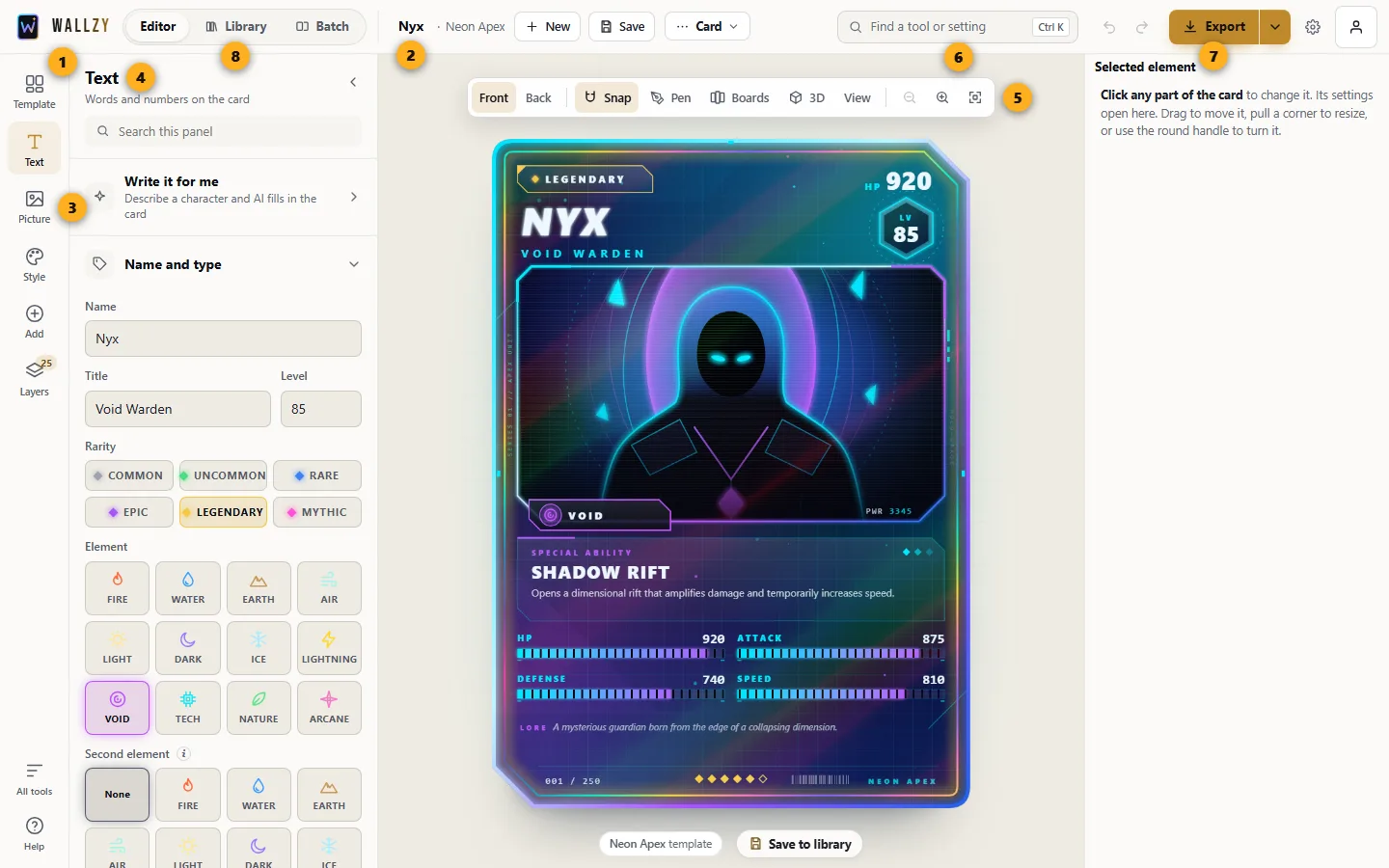
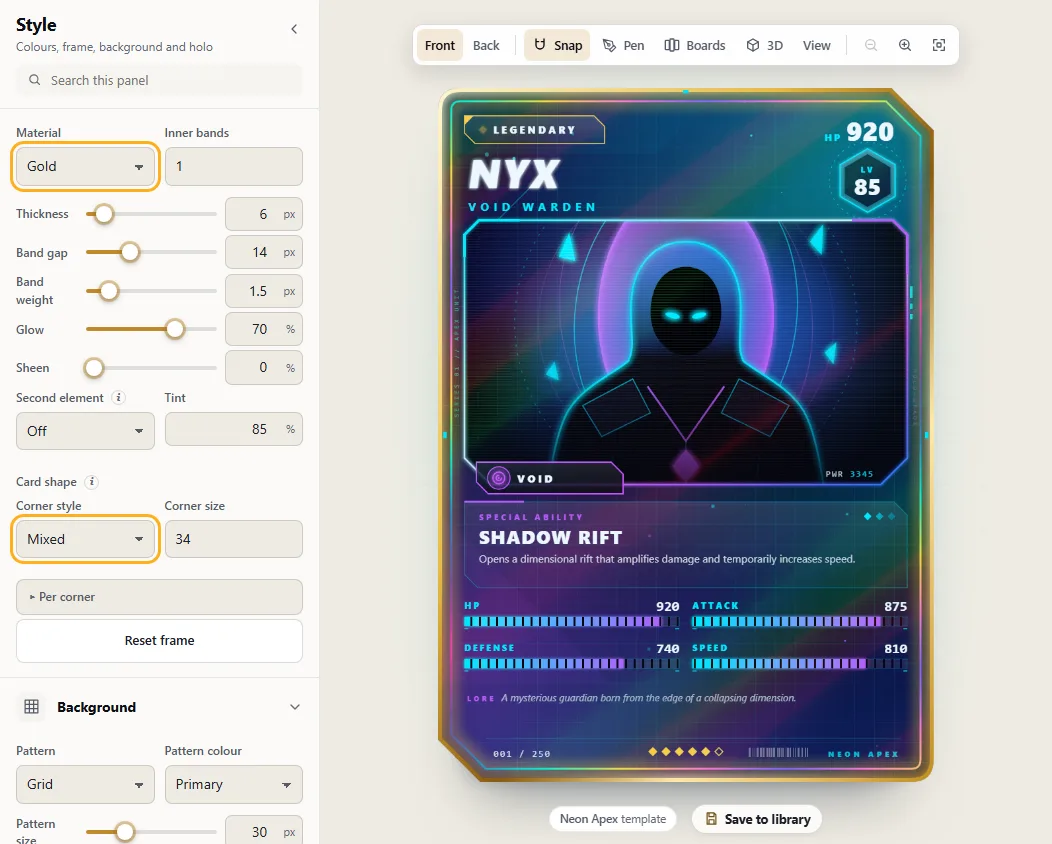
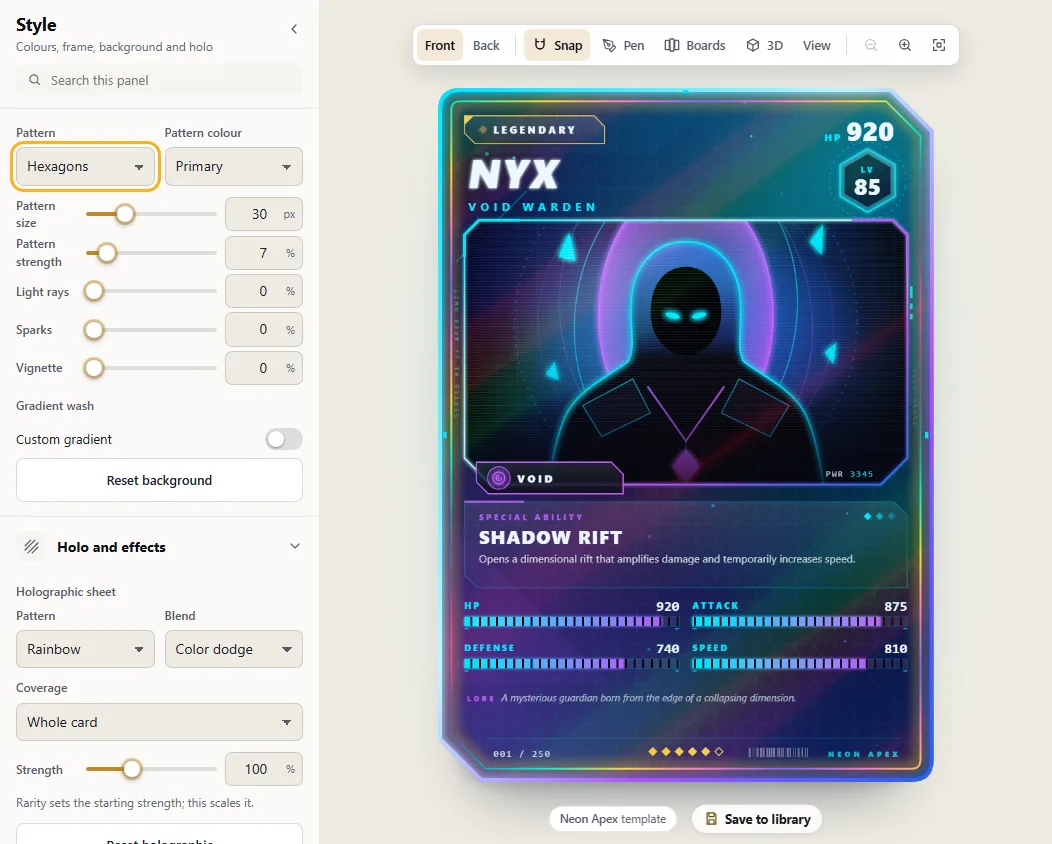
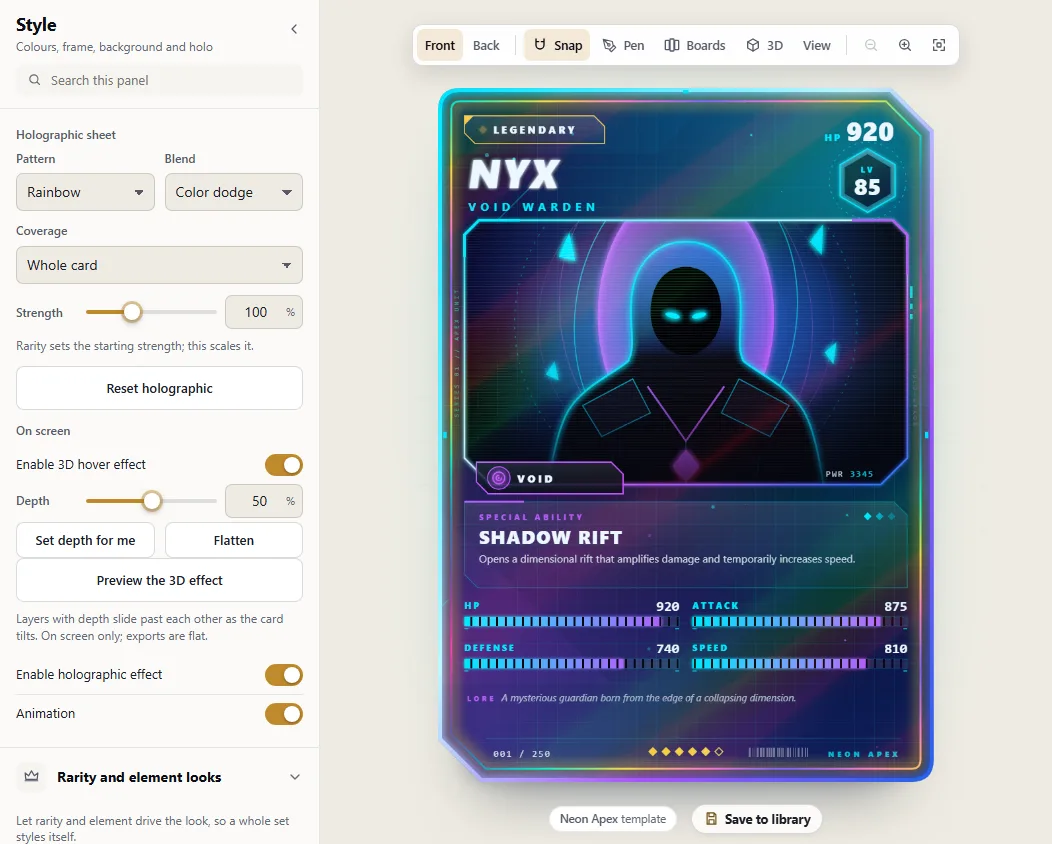
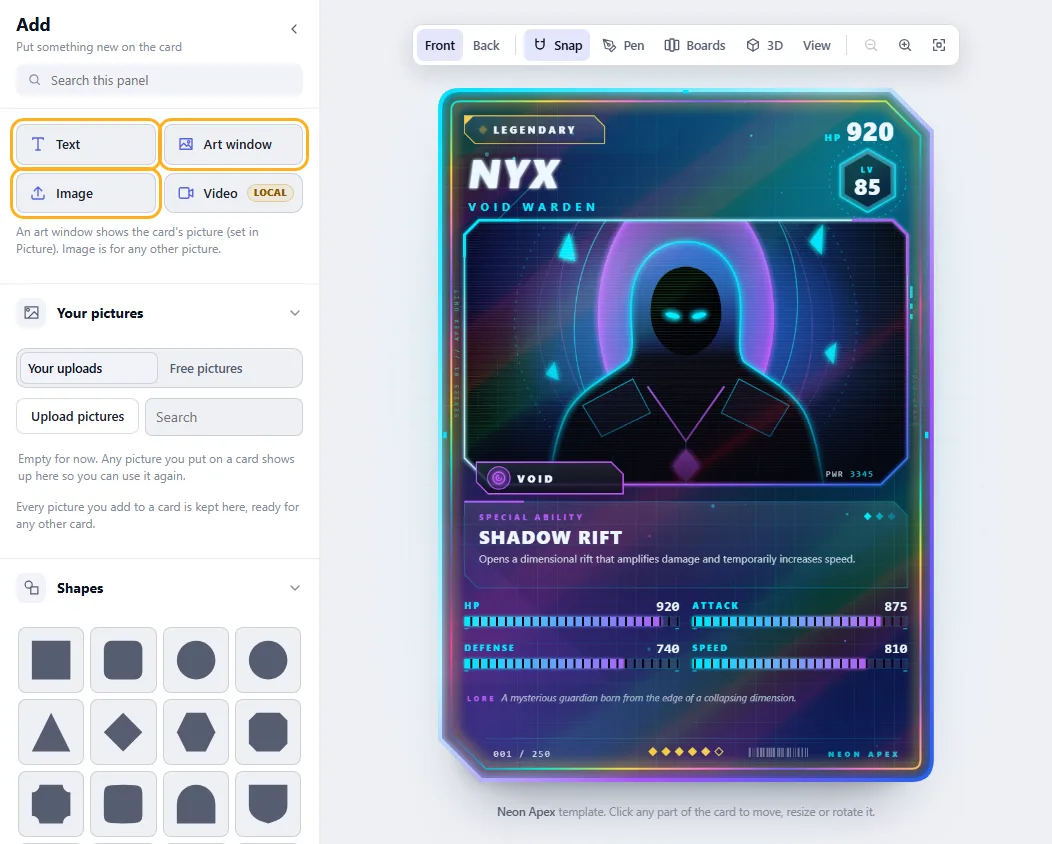
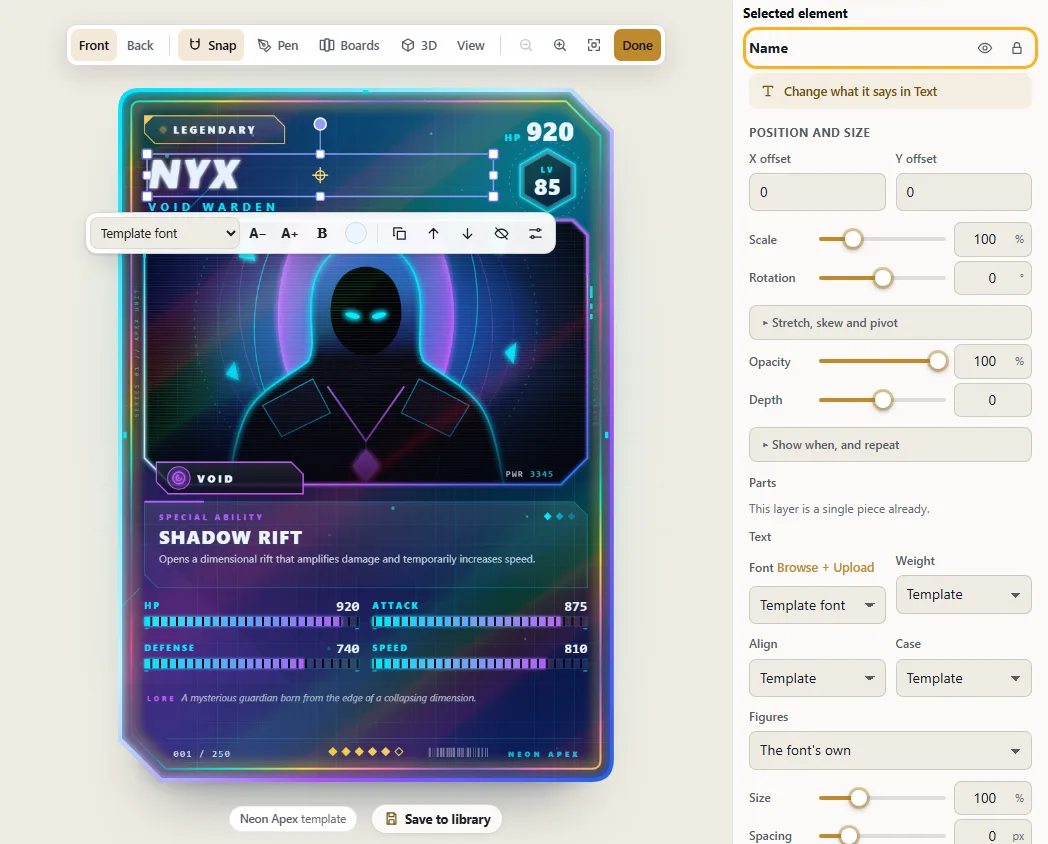
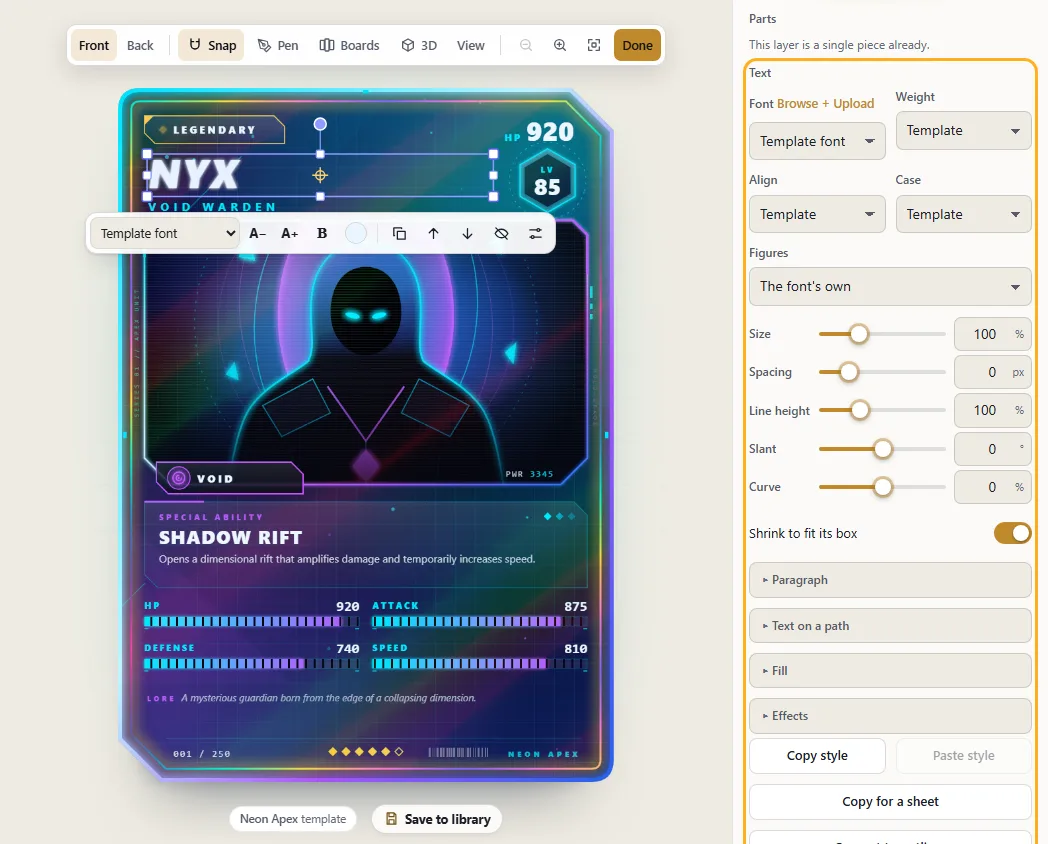
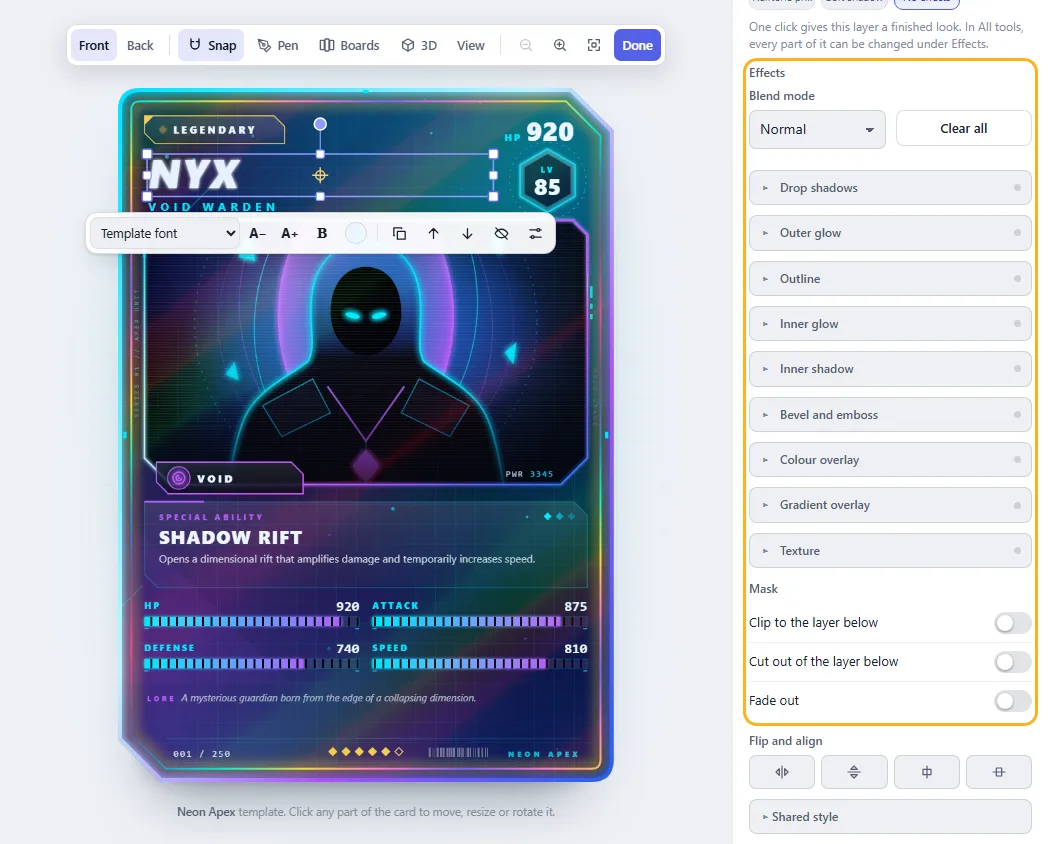
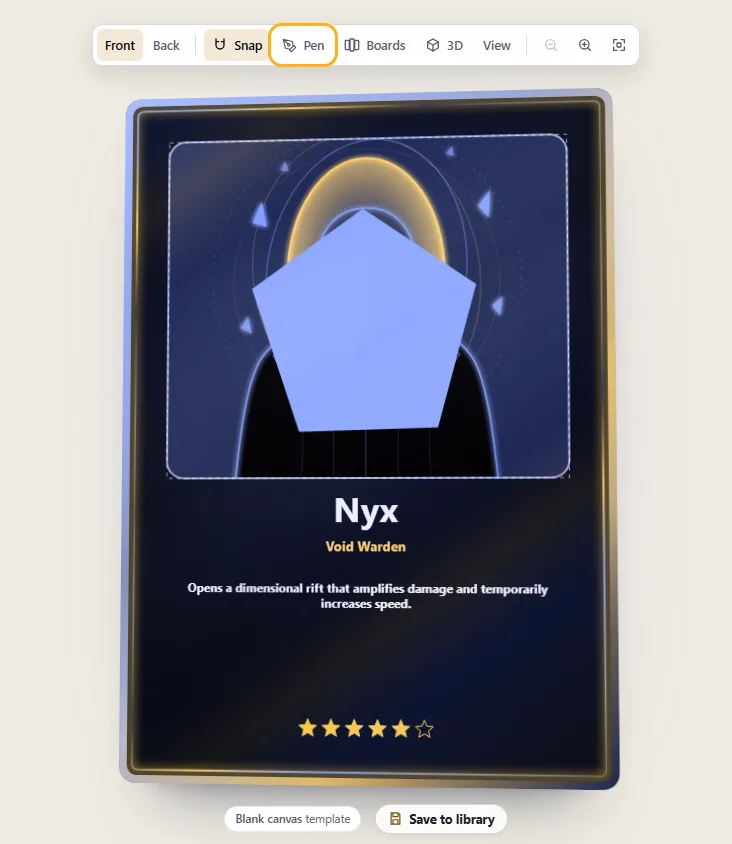
Every guide has a screenshot of the editor, and the bit you're after is ringed in
orange. Making your first card? Work down from the top. Otherwise
search for what you have in mind.
No guide matches that. A shorter word usually works better: text, frame or pdf, say.
1
Getting started
Finding your way round the editor, on a big screen and on a phone.
A tour of the editor
From left to right: the sections in the order you make a card, the panel for whichever one is open, and your card. Click part of the card and its settings slide in on the right.
1Home. Click the Wallzy logo to get back to the homepage.
2Card name and template. Click the name if you want to change it. Beside it are New, Save and ⋯, the card menu.
3Sections. Template, Text, Picture, Style, Add and Layers. Click one to open its panel.
4The panel for that section, with a search box for what's in it. Want more room for the card? The arrow next to the panel's title tucks it away.
5Card toolbar. Flip between front and back, turn snapping on or off, draw with the pen, open View, zoom.
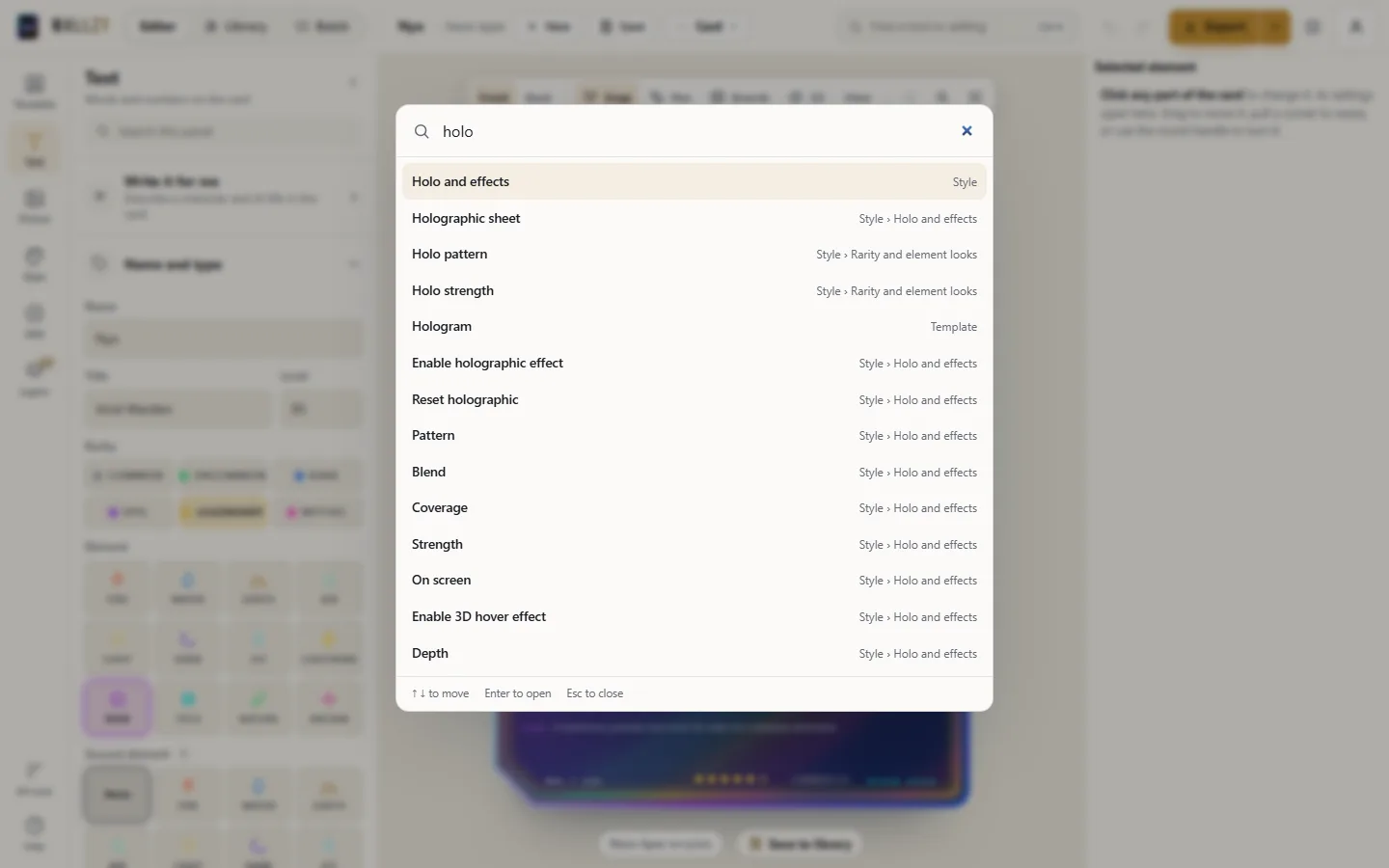
6Find. Type what you're after, holo or crop marks for example, and it takes you there. Ctrl + K opens it from anywhere.
7Export. Click it and a PNG downloads. The little arrow next to it has SVG, the print PDF and more export options.
8Library. Every card you've saved.
Tip There's no save button to remember. Your work is kept as you go, so you can close the tab and pick up later. Made a mistake? Ctrl + Z.
Find any tool or setting
Can't remember where something lives? Search for it. You don't need to know which section it's in.
Click Find a tool or setting at the top, or press Ctrl + K.
Type a word or two: holo, corners, crop marks, lore.
Pick a result with the arrow keys and Enter, or click it. The right panel opens, the section unfolds and the setting lights up.
Each panel also has its own Search this panel box, which hides the sections that don't match.
The start screen
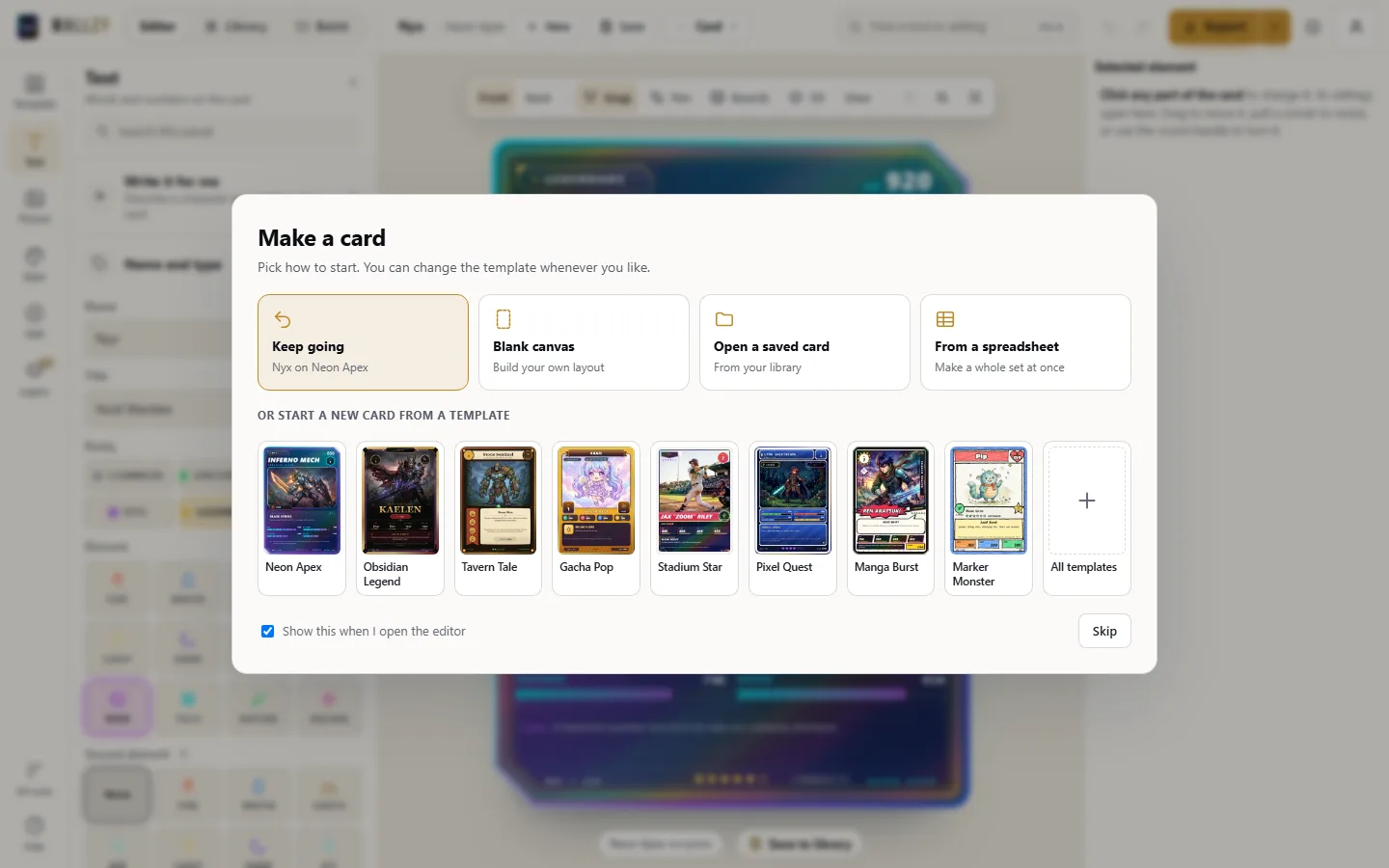
When you open the editor it asks how you'd like to start. Carry on with your card, begin a blank one, open a saved card, or pick a template.
Keep going takes you back to the card you were working on, exactly as you left it.
Choosing a template, or Blank canvas, starts a new card in it.
From a spreadsheet opens Batch, for making a whole set at once.
Rather not see it? Untick Show this when I open the editor. The card menu (⋯) can bring it back.
New, Save, the card menu and settings
Next to the card's name are the two things you'll use most, New and Save, then a ⋯ button with the rest. Settings for the editor itself sit under the gear by your account.
New starts a card of its own on the blank canvas. Nothing comes across from the card you were on. If that card has changes your library doesn't have, you're asked whether to save it first.
Save files the card in your library. Once it's there the button reads Saved; after a change it reads Save again, with an amber dot, until you update the library copy. Your work is also kept in this browser as you go, whether you press it or not.
A saved card keeps the template it was saved with. Switch it to another template and Save keeps that as a new card, leaving the first one as it was. Switch back and Save updates the first one again.
In the ⋯ menu: Save as a new card always adds a separate card, Revert to saved throws away the changes since your last save, Reset design puts this template's layout, colours and frame back as they started (your words and picture stay), Random character invents someone for you, and Start screen shows the ways to begin a card.
The gear holds Theme (dark, light or whatever your computer uses; your card looks the same in all three), Tools (Simple or All) and Interface (Compact or Large). On a phone they're at the foot of the ⋯ menu.
On a phone
On a small screen the sections sit in a bar at the bottom, and panels slide up as sheets. You can still see the card while you type.
Tap a section in the bottom bar and its sheet opens. Tap again and it closes.
The grey handle at the top of a sheet can be dragged. Pull it up to fill the screen or down to shut it. Tapping it flips between half height and full.
Tap part of the card to bring up its settings. While something is selected, an Edit button at the end of the bar opens them again.
On a phone you'll find Card library in the card menu (⋯).
Tip Pinch with two fingers to zoom. Handles are drawn larger on touch screens, so your thumb can actually hit them.
2
Templates and card backs
Begin with a design that's already done, or with nothing at all.
Pick a template
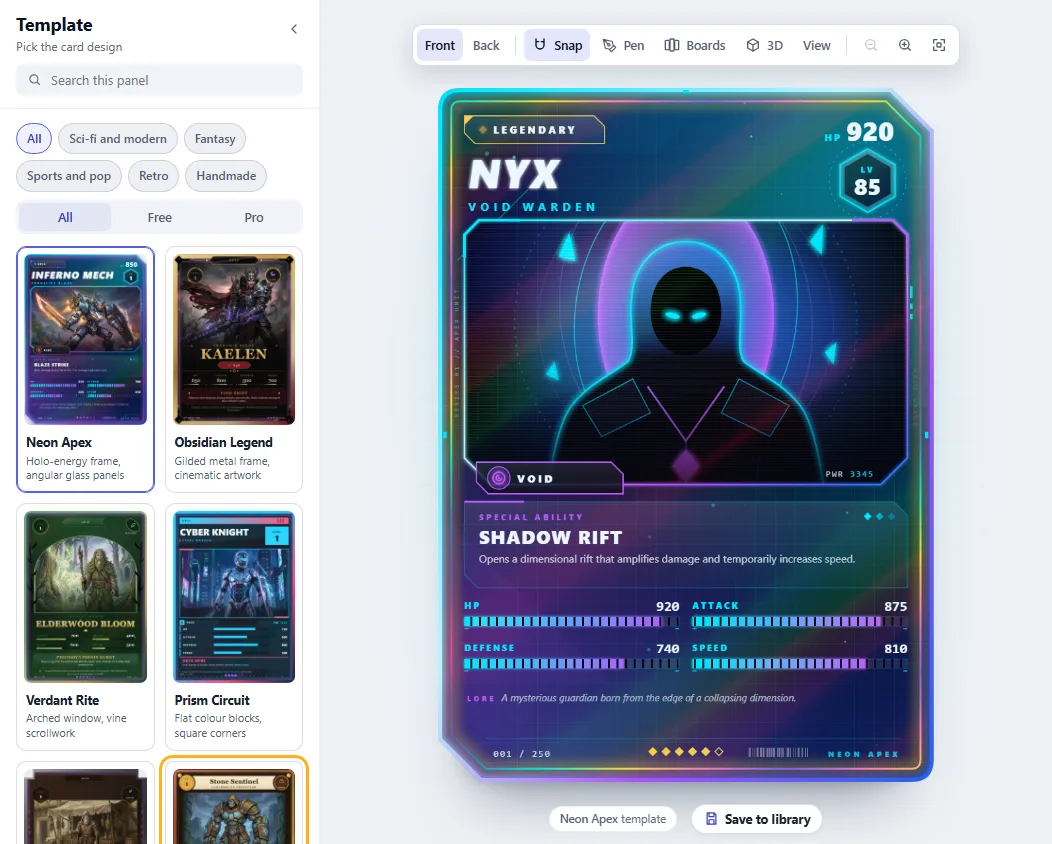
There's a whole gallery of finished designs, and a blank canvas. Your text and picture come with you when you switch.
Open Template from the left bar.
Narrow the gallery if you like: Fantasy, Sports and pop, Retro, Handmade, or only Free or Pro. The search box finds one by name.
Click any card in the gallery and your character is moved into that design.
Liked the old one better? Click it again. Every template keeps its own colours and layout, so you won't lose anything by trying.
Blank canvas gives you very little: an art window, name, title, rules text and rarity marks. The rest is up to you (the Add tab explains how).
Tip See a Pro badge on a template? On the hosted site, that one comes with a paid plan.
Design the back of the card
Cards have backs too. There are fifteen to choose from, and each front has one made to go with it.
In the toolbar above the card, click Back.
The left bar now reads Back design and Back text. In Back design, choose a design. Match the front uses the one drawn for your template.
In Back text, add a set name and tagline. For the emblem, use a symbol, an ornament or a logo of your own.
If both sides should match, keep Use the front's colours and Use the front's frame and shape switched on.
Save as my default back means new cards start with it. Use on all library cards gives it to the ones you've already saved.
Tip Layers, text styles, effects: if it works on a front, it works on a back. Back to the front at the top of the panel flips it round again.
3
Writing the card
All the words and numbers live in the Text section.
Name, title and level
The card updates with every key you press. If a name runs long, it gets smaller so it still fits.
Open Text from the left bar.
Fill in Name, Title and Level under Name and type.
Further down: Card text for the ability and lore, and Set and number for the card number.
Tip Double-click words on the card to type straight over them. Change what it says in Text in their settings takes you to the box they come from.
Rarity, element and a second element
Rarity controls the foil, the glow and the little rarity marks. Element controls the icon and its colour. And yes, a card can have two.
Choose a Rarity between Common and Mythic. Rarer cards get a stronger holographic shine.
Choose an Element. There are twelve, and each has a colour and icon of its own.
Want a dual card? Pick a Second element as well. Badges then carry both icons, the name reads "FIRE / WATER", and anything set to the second element is painted in its colour.
To drop back to a single element, choose None under Second element.
Tip The frame can show both colours. In Style → Frame and shape, set Second element to diagonal, vertical, horizontal or blend.
Stats, and stats of your own
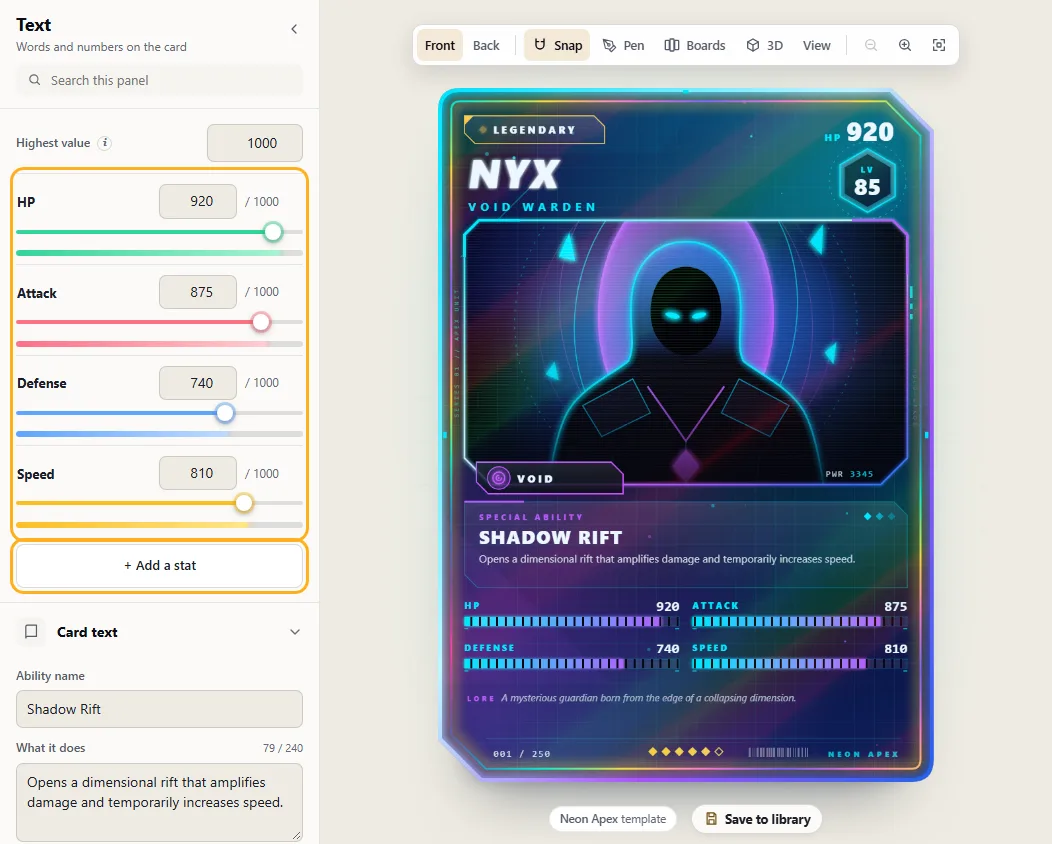
HP, attack, defense and speed drive the bars and numbers on the card. Total power is worked out from them.
Move a slider, or type straight into the box next to it.
Maximum decides what a full bar is worth. One value covers all four stats.
+ Add a stat lets you invent your own, Mana or Luck for example. You can have six.
Once you've made one, Add to card like the others draws it the same way the card draws its last stat, so it doesn't look tacked on.
Let the AI write the card
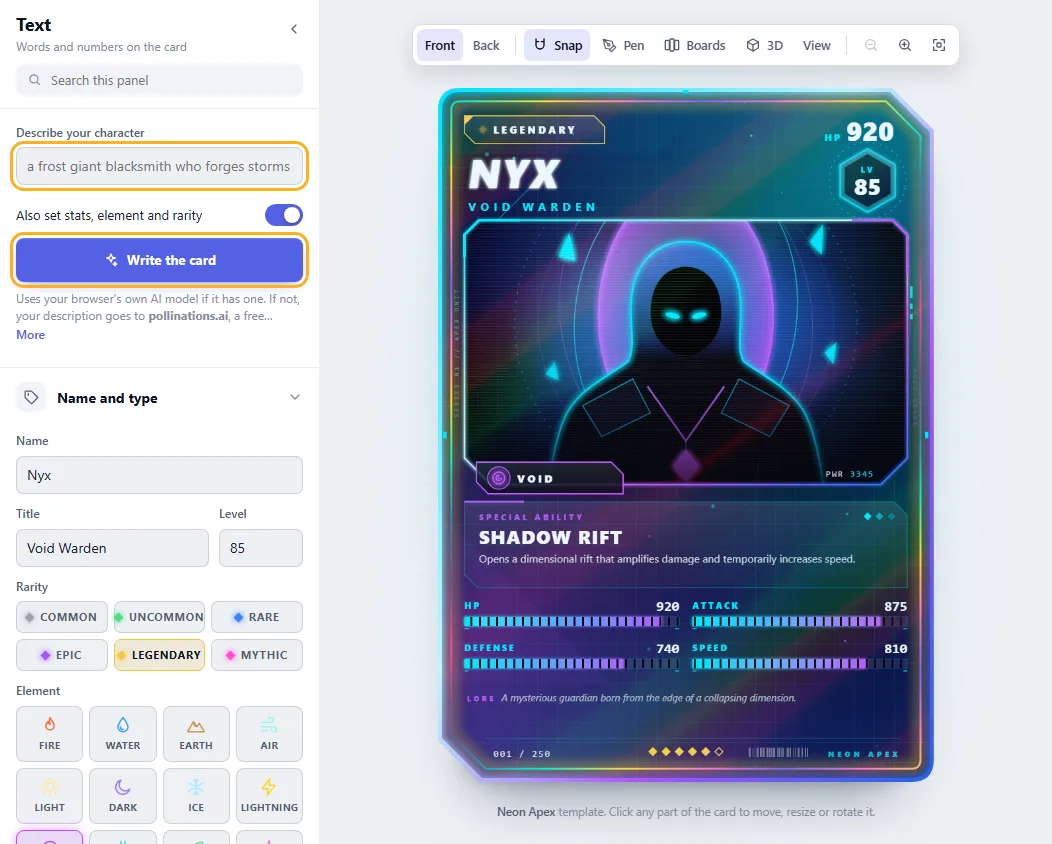
Give it a one-line idea and it writes the lot: name, title, ability, lore, stats, element, rarity.
In the AI assist box, type something short. A frost giant blacksmith who forges storms is plenty.
With Also set stats, element and rarity ticked, those get filled in as well.
Press Write the card. Don't like what you got? Press it again.
A single Ctrl + Z undoes everything it wrote.
Unless your browser comes with its own AI model, you'll need to be online. Your idea goes to pollinations.ai, a free service that doesn't ask you to sign up.
Rules text: bold, colours and icons
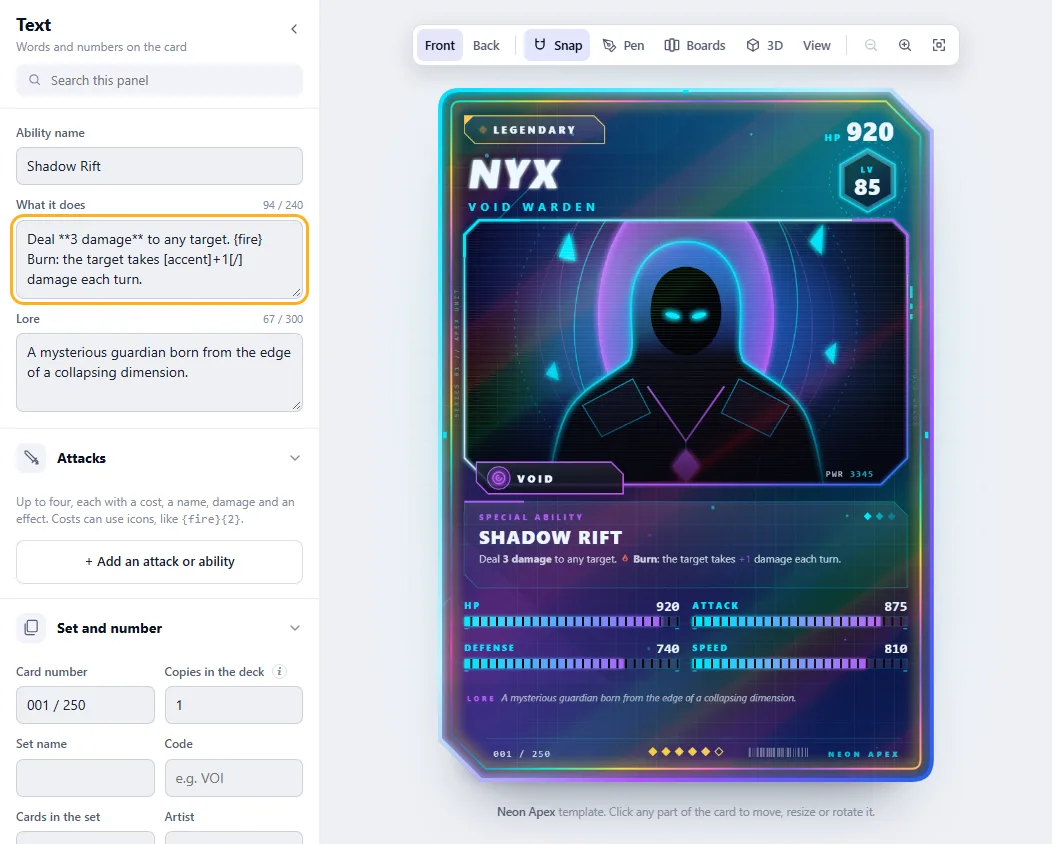
A handful of marks let you put bold words, colours and little icons into any text on the card.
Type this
To get
**3 damage**
bold
*once per turn*
italic
[accent]+1[/] or [#ff8800]+1[/]
a palette colour, or any colour
{fire}{hp}{star}{tap}
an icon in the line
{2}
a numbered cost symbol
a new line
a new paragraph
Under Rules text, write down your game's keywords (Flying, Burn…). Wherever one turns up, it gets styled.
Decide how they should look: bold, italic, a colour, or a mix.
Tip If you actually want a * or a { to show, type a backslash in front: \*.
Attacks and abilities
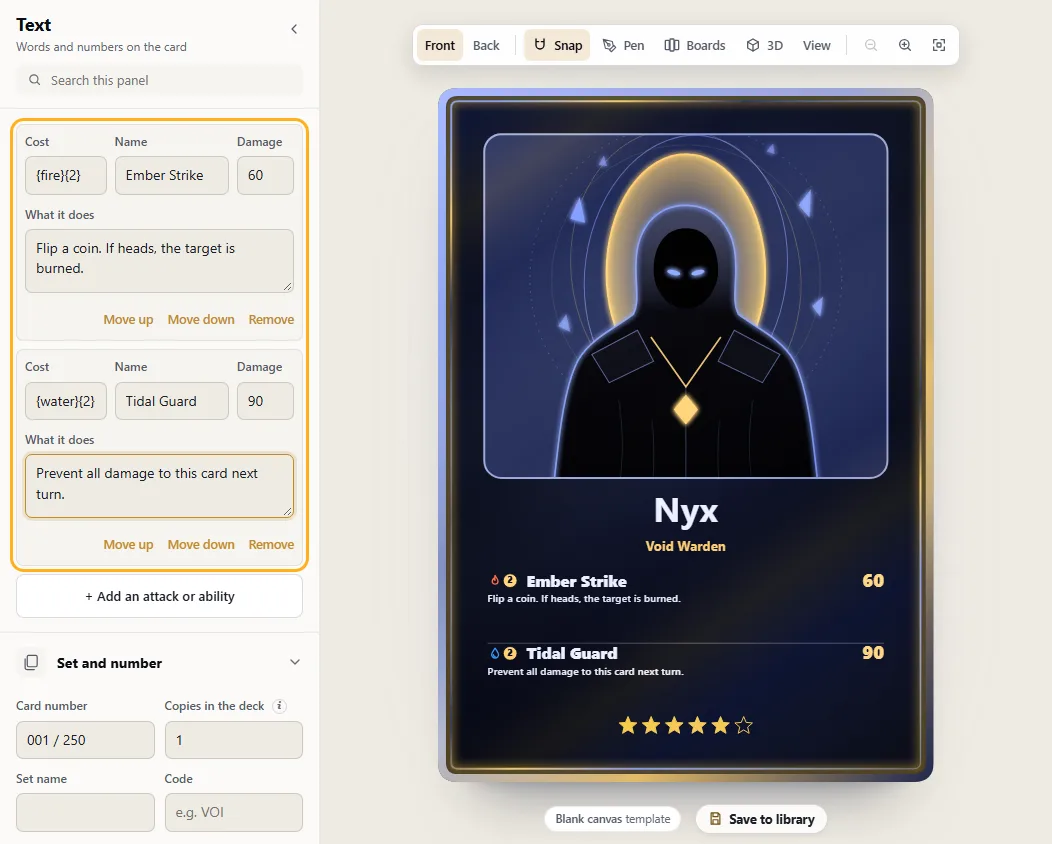
The kind of attack rows you see on monster-battle cards. Each has a cost, a name, damage and an effect, and you get four.
Go to Text → Attacks and click + Add an attack or ability.
If the card has no attacks block yet, one is put on for you. You can also add it from Add → Card data.
Write the cost using icons, like {water}{2}. Then fill in the name, damage and effect.
Reorder rows with Move up and Move down, or get rid of one with Remove.
Tip It's an ordinary layer, so you can drag it where you like and pull the handles to resize it.
Card types with their own layout
Creatures, spells and items rarely share a layout. Here each type gets its own, on the same template, and changing a card's type swaps the layout over.
Go to Text → Card type (it's under All tools), enter a name and click Add. Repeat for every type your game has.
Choose this card's type. A type you haven't used yet begins with the default layout.
Now move, hide or add things. Only that type is affected.
Any card of that type, old or new, will use this layout.
Set info: symbol, collector number, artist
The fine detail that makes a card look published: a set symbol coloured by rarity, a number like "001/250", the artist and a copyright line.
In Text → Set and number, enter the set name, its code, how many cards it has, the artist and the copyright. {year} turns into the current year.
Build the Collector line from pieces such as {number}, {total}, {code} and {rarity}. A preview underneath shows the result.
Choose a Set symbol or upload one. It's tinted by rarity on the card: black, silver, gold, purple, orange or red.
To place them, use Add → Card data, under Set info and attacks.
Got a full set in the library? Copy this set info to every library card, then Number them.
Custom fields
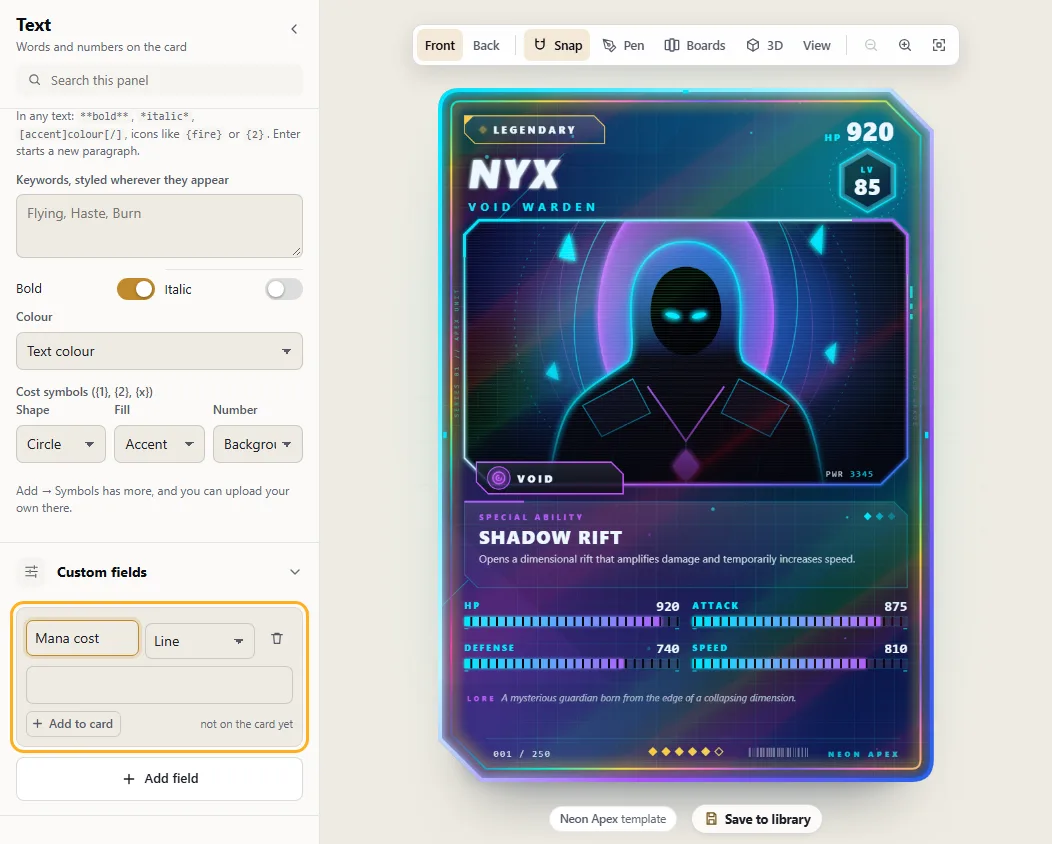
When the built-in boxes aren't enough, make your own. A mana cost, a jersey number, a keyword. Text on the card can then be tied to them.
Open Text → Custom fields, click Add field and give it a name.
Say what sort of field it is: line, paragraph, number, choice, list, formula or picture.
Put some text on the card (Add → Text) and link it to the field in its settings. From then on, whatever you type in the field shows on the card.
Number fields can also run a bar or a dial, or decide how many marks appear.
Tip Formula fields do sums and decisions for you, for instance attack + defense or level > 5 ? "Elite" : "Rookie".
4
The picture
Bring your own art, have some generated, or find free pictures you're allowed to use.
Add and frame your picture
PNG, JPG and WebP all work. Nothing gets cropped away: you just choose which part shows through the window.
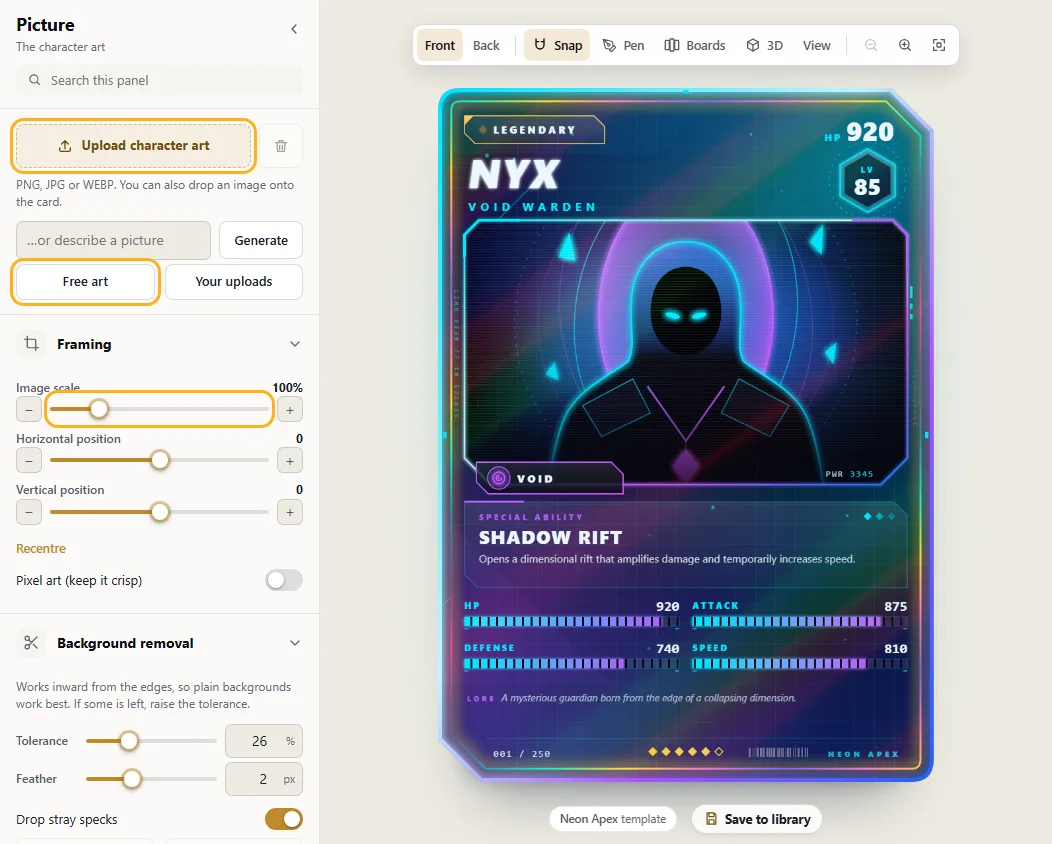
Open Picture from the left bar and click Upload character art. Dragging a file onto the card works too.
Under Framing, Image scale zooms in and out, and the two position sliders slide it around.
Haven't got any art? Describe something in …or describe a picture and hit Generate.
To take the picture off, click the bin.
Find free art
Millions of Creative Commons and public-domain pictures, searchable from the editor. The credit stays attached to your card.
In Picture, press Free art.
Search for something and set the filter. If you plan to sell, pick Free to use in cards you sell: it hides anything whose licence forbids selling or editing.
Click the one you want. The card remembers its title, artist and licence.
Add → Card data → Picture credit prints that credit on the card.
You need to be online for this, and the search is run by Openverse. Read the licence yourself before you print anything to sell.
Colour, shape and cut-out
Adjust the picture's colour, reshape its window, take out a plain background, and have your character step out over the frame.
Everything here is in the Picture panel.
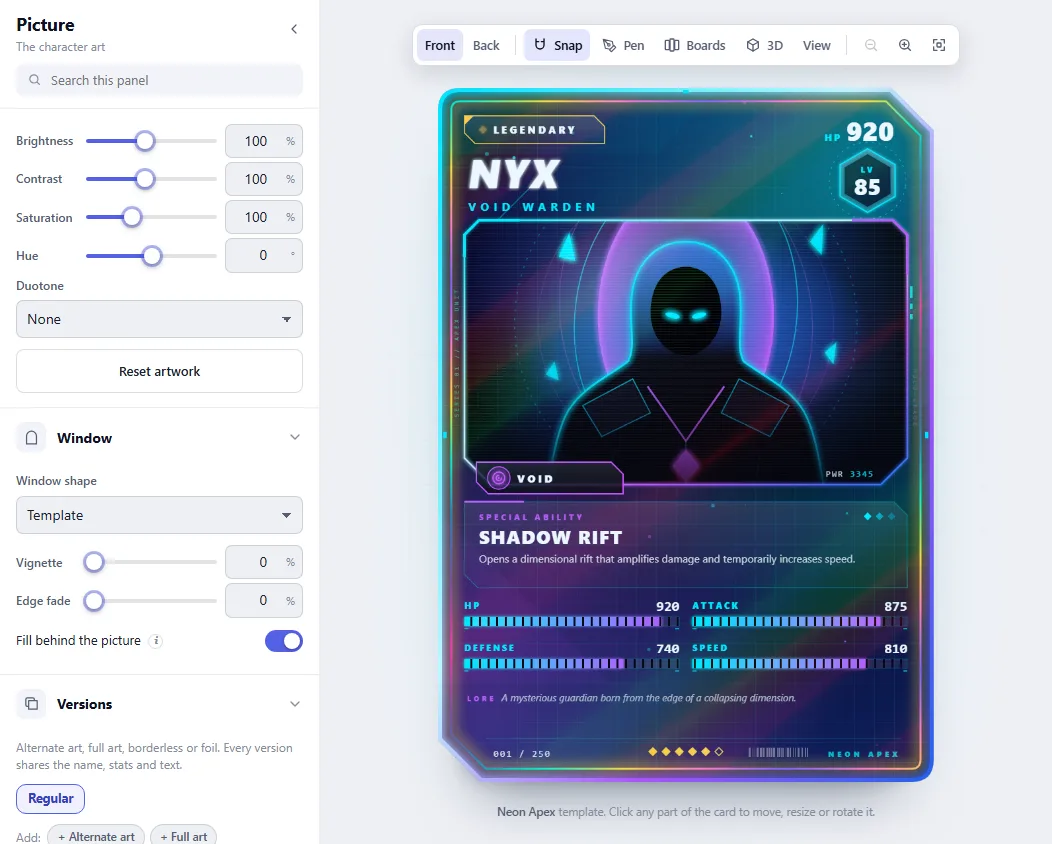
Under Colour, tweak brightness, contrast, saturation and hue. A two-colour duotone is in there as well.
Under Window, give it a different shape (circle, arch, hexagon…), darken its corners with a vignette, or soften its edges.
Under Background removal, Remove background does well when the backdrop is a flat colour. If bits are left behind, turn the tolerance up.
Switch on Break out of the frame and the cut-out character can spill over the frame.
Tip In Style → Colours, Palette from the artwork recolours the card to suit the picture.
5
Style: colours, frame and shine
All of it in the Style section.
Looks: a whole design in one click
A Look changes colours, corners, frame, background, shine, picture tone and font in a single go.
Go to Style → Looks.
Pick one. Looks aren't tied to a template, so any of them will do.
Changed your mind? Ctrl + Z takes the whole Look off.
Colours
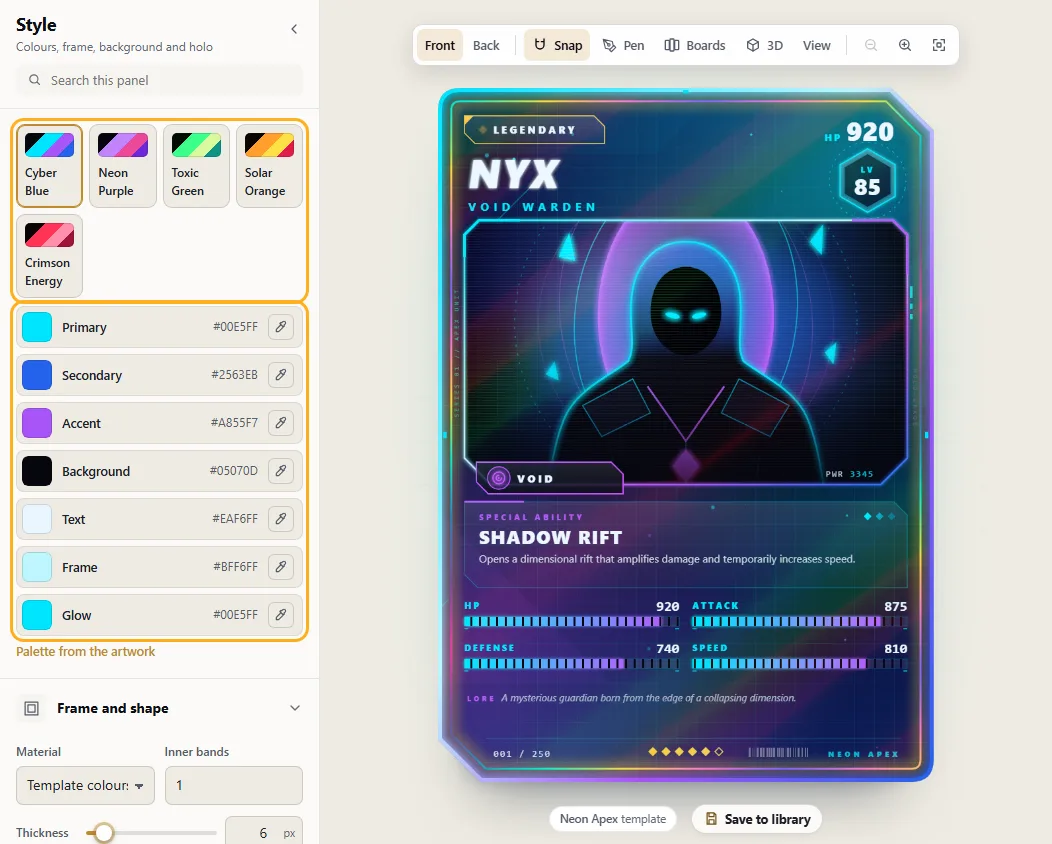
The card is painted from seven colours. Swap one and every part that uses it changes with it.
Go to Style → Colours.
Pick a preset from the row at the top, or click any colour square and choose a colour yourself.
In Chrome and Edge there's a dropper button that grabs a colour from anywhere on screen.
Tip Roughly: Primary and Secondary carry the design, Accent picks things out, Frame is the border and Glow is for lighting.
Frame and corners
Material, thickness, extra bands and the shape of each corner are all yours to change. Alter a corner and the card's actual outline follows.
Go to Style → Frame and shape.
Pick a material: gold, silver, chrome, stone, your colours…
Set the corners to round, sharp, cut, notched or scooped, and pick a size. They don't all have to match.
If you like, add inner bands and space them out.
Background
Behind the art and text: patterns, rays of light, sparks, a vignette and a gradient wash.
Go to Style → Background.
Choose a pattern, then set how big, how strong and what colour.
Rays, sparks and a vignette are optional extras.
For a gradient, add stops and give each a colour and position. It can run in a line or out from the centre.
Tip Art and panels cover a lot of the card. Expect the pattern to show mainly in the spaces between them.
Holographic shine
This is the foil that shifts when you tilt the card. How strong it looks depends on rarity.
Go to Style → Holo and effects.
Choose a sheet (rainbow, gold foil, prism…) and how strong it should be.
Decide where it appears: all over, on the picture, around the picture, or across the top half.
Under On screen in the same section, switches control the shine, the animation and the 3D tilt.
Looks by rarity and by element
A Mythic should look the part, with a frame, glow, sparkles and shine nobody else gets. Elements can have their own colours too.
Go to Style → Rarity and element looks (under All tools).
A ladder (classic, metals, foil, colour) sets up all six rarities at once.
You can also do it by hand: click a rarity tab and set frame, glow, shine, sparkles and edge. The card switches to that rarity so you can see what you're doing.
Switch on element themes to give each element a palette, pattern or frame of its own.
6
Adding to the card
The Add section: text, pictures, shapes, symbols, frames, badges and ways to show stats.
The Add tab
Whatever you add becomes a separate layer that you can drag, resize and recolour.
Open Add from the left bar.
The tiles at the top jump to each kind: Text, Picture, Shape, Symbol, Ornament and, with All tools, Card data, Stat display, Component, Frame part, Texture and Draw.
Text and pictures has text, art windows and pictures.
Card data holds things tied to the card's values: linked text (the name, a stat…), bars, rarity marks and the element icon.
Shapes offers twenty of them, each with fill, outline, gradient, shadow and gloss.
Start from scratch, at the bottom, either moves you to the blank canvas or hides a template's parts, leaving just its frame to build on.
Tip Anything new goes in beneath the shine layer, so it picks up the foil like everything else.
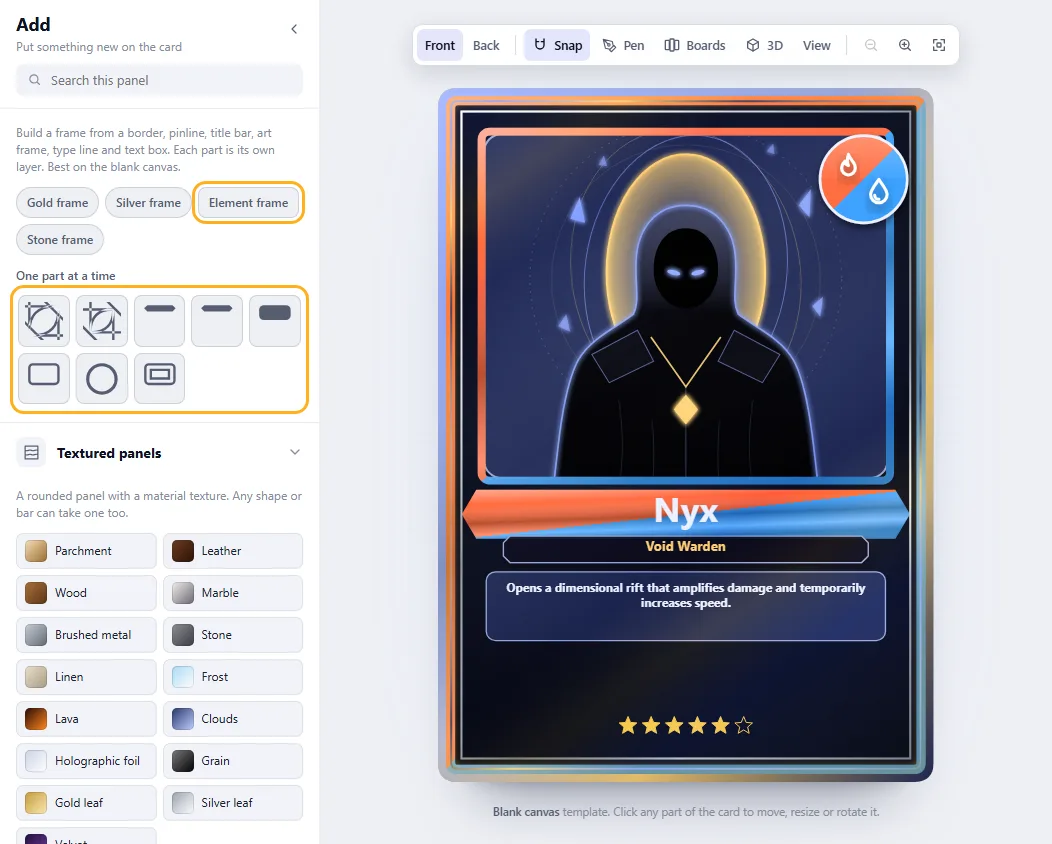
Build a frame from parts
Put together a traditional frame piece by piece (border, title bar, type line, text box, art frame, gem socket) in metal or in element colours.
Open Add → Frame parts. It suits the blank canvas best.
Choose Gold frame, Silver frame, Element frame or Stone frame. The pieces arrange themselves around the name, title, text and picture.
Prefer to go slowly? Add single parts from the row underneath.
Click a part to set its material, thickness and split. On a dual card, split paints it half in each element.
Ready-made badges and chips
Ready to drop in: stat chips, level and element badges, a dual element badge and a name ribbon. Each is a small group of parts.
Go to Add → Components and choose one.
Clicking it on the card picks up the whole badge, ready to move.
For a single piece of it, choose that piece in Layers or Ctrl-click it on the card.
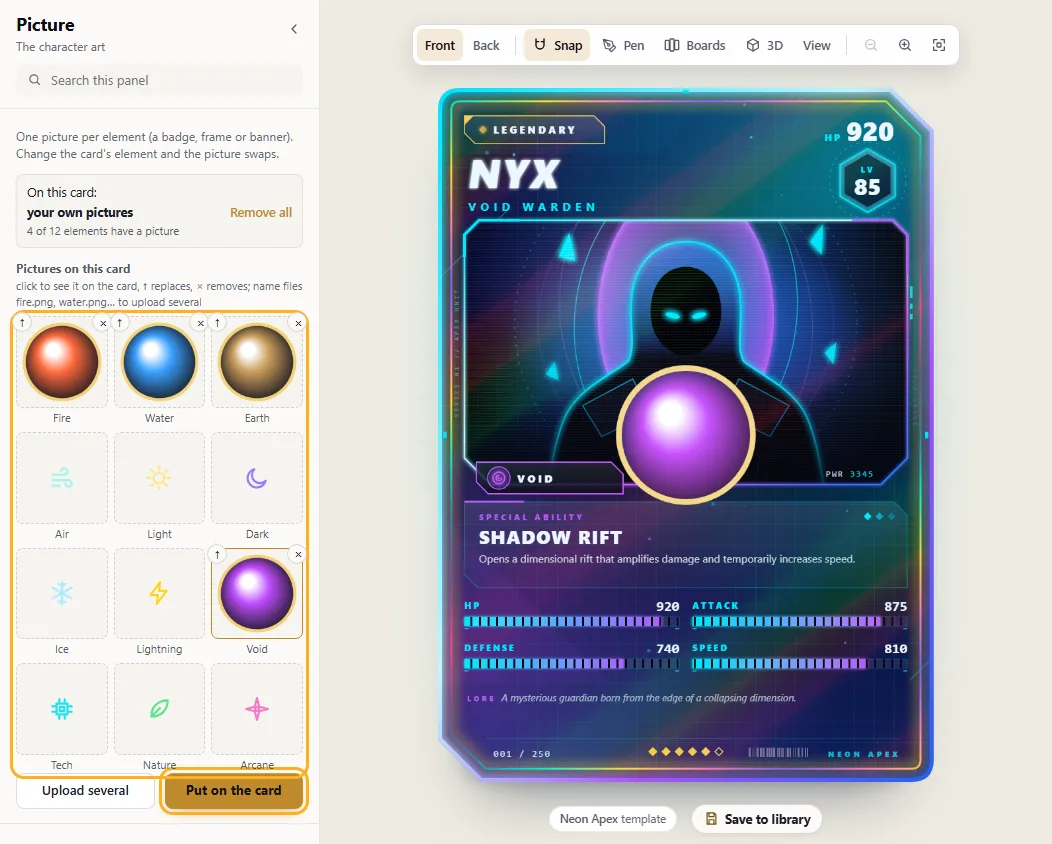
Element art: a picture per element
Give every element its own badge, frame or banner. When the card's element changes, the picture changes with it.
Go to Picture → Element pictures (under All tools).
Click Upload several and choose your files. If they're named after elements (fire.png, water.webp), they sort themselves into the right slots.
Press Put on the card, then position and size it as you would any layer.
Clicking a slot shows the card in that element. Use ↑ to swap the picture and × to delete it.
Where an element has no picture, its usual icon is drawn instead.
Tip The hosted site may have finished element sets you can use. Only one set can be on a card at a time.
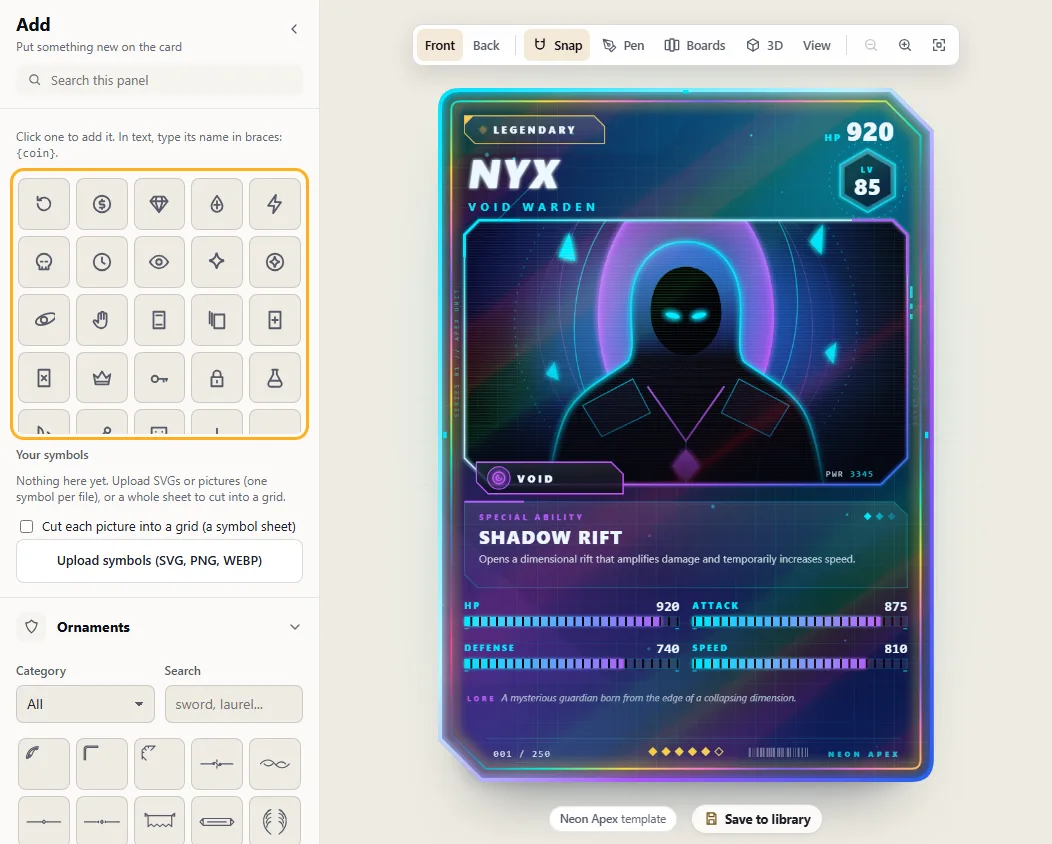
Symbols and ornaments
Tiny icons for costs and rules (coin, gem, tap, skull…), plus ornaments and emblems for decoration.
Click a symbol in Add → Symbols to place it. Or type its name in curly brackets inside any text, as in {coin}.
Upload takes your own symbol as an SVG or picture. It can also slice a sheet of icons into a grid.
There are 79 emblems and decorations in Add → Ornaments. For a drawing of your own, use SVG ornament under the ornaments; it'll pick up the card's colours.
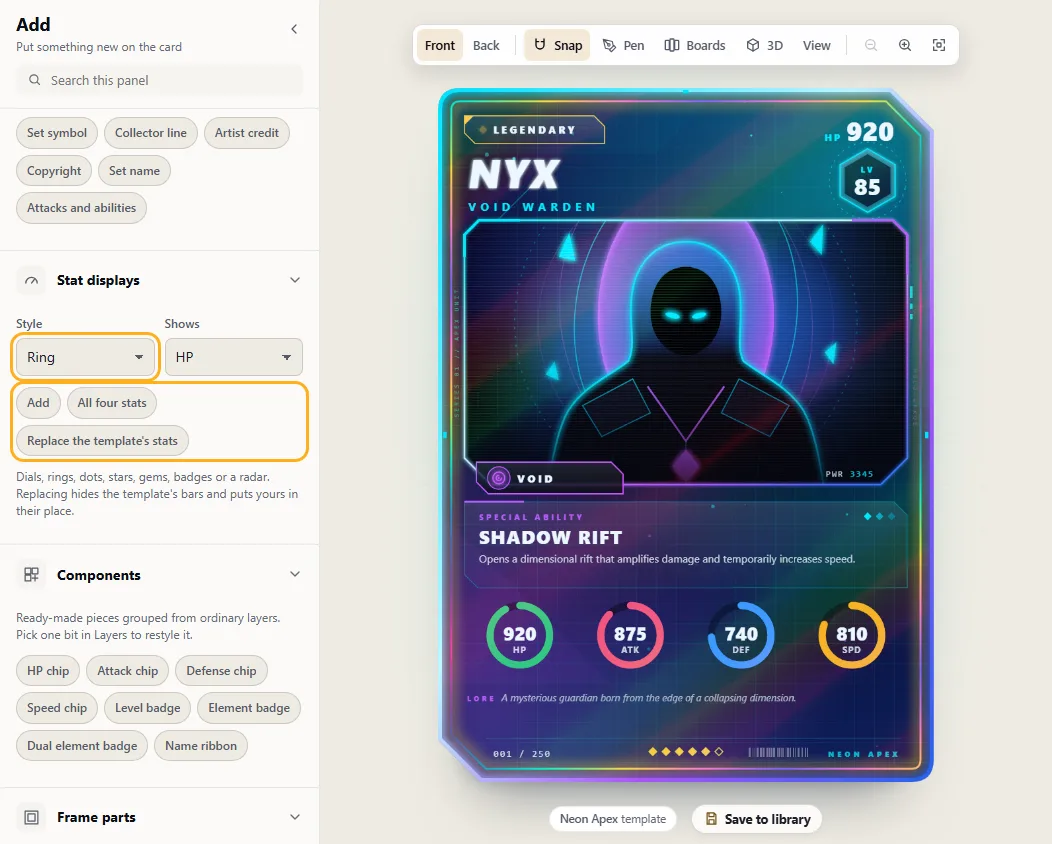
Stat displays: dials, rings, stars, radar
Stats don't have to be bars. Try dials, rings, dots, stars, gems, badges or a radar chart, all of which update with the numbers.
Go to Add → Stat displays.
Set the Style, and choose what it Shows.
Add puts one on the card; All four stats puts down a matching set.
Replace the template's stats hides the original bars and slots yours in where they were. The originals are only hidden, not deleted.
7
Editing layers
Moving, resizing, styling and combining the parts of a card.
Select, move, resize, rotate
Each piece of a template is its own layer. Click one and you'll see its settings on the right.
Click something on the card. A box with handles shows up round it.
Drag from inside the box to move it. Corners resize; the round handle at the top rotates.
It'll snap to edges and centres. Hold Alt as you drag if you don't want that.
For exact numbers, type them on the right: position, scale, rotation, opacity.
When you're finished, click Done or press Esc.
Tip The arrow keys nudge a layer one unit, or ten with Shift held. Ctrl + D makes a copy.
Right-click, and typing on the card
Most of what you do to a part is one right-click away, and words can be changed right where they sit on the card.
Right-click any part of the card. It's picked, and a menu offers duplicate, copy, the four ways to change its order, group, text style, lock, hide and delete.
Right-click beside the card for undo, redo, the whole card and a print check.
Double-click a name, a title, the rules or any text you added, and a box opens over it. Type, and the card changes as you go.
Enter keeps it. Esc puts the words back as they were. In longer text, Shift + Enter starts a new line.
Tip What you type goes into the same field as in the Text section, so one Ctrl + Z takes the whole change back.
Several at once, align and group
Pick more than one part and you can move, line up and space them together, or turn them into a group.
Hold Shift and click parts, either on the card or in Layers.
The align buttons line them up by left, centre, right, top, middle or bottom edge. Select three or more and you can also space them out evenly.
Group (Ctrl + G) ties them together so they move as one. Undo it with Ctrl + Shift + G.
The Layers tab
A list of all the layers in the order they're stacked, with the frontmost first.
Open Layers from the left bar.
Grab a row by its handle and drag it up or down to bring it forward or send it back.
The eye icon hides a layer. The padlock means clicks on the card go straight through it.
Clicking a row selects that layer, hidden and locked ones included.
Tip] brings the selected layer forward one step and [ sends it back. Add Ctrl to go all the way.
Style any text
Any words on the card can take a new font, size, spacing, curve, gradient fill, outline, glow, shadow or bevel.
Click some text on the card.
Under Text, choose a font. + Upload lets you add your own.
Set the size, spacing and slant. Curve bends the line into an arc.
Further down are fill (a flat colour, a gradient, or the card's picture), outline, glow, shadow, inner shadow and bevel.
Tip Got one looking right? Copy its style with Ctrl + Shift + C and paste it onto other text with Ctrl + Shift + V.
Effects, blending and masks
Any layer can have shadows, glows, outlines, bevels, overlays and textures. Blend modes and masks are here as well.
With a layer selected, scroll down to Effects.
Turn an effect on and play with its settings. You can pile up several, the way photo editors let you.
Blend controls how the layer mixes with whatever is beneath it (multiply, screen, overlay…).
Clip to the layer below keeps it inside the shape of the layer underneath. Cut out uses it to punch a hole. Fade makes it trail off gently.
Draw with the pen
Draw shapes of your own, then reshape them point by point or merge them together.
Pick Pen from the card toolbar, or just press P.
A click makes a corner; a drag makes a curve. Clicking your first point again closes the shape, and Enter ends a line you want left open.
Double-click a shape to work on its points. Double-click the outline to add one; Delete removes the selected one.
With two or more shapes selected, you can join, subtract, intersect or exclude them.
Zoom, rulers and guides
For fiddly work you can zoom to 1600%. The View menu has rulers, guides, a grid, and the print bleed and safe area.
Zoom with the magnifier buttons in the card toolbar or with Ctrl + mouse wheel.
Once zoomed, scroll to move around, or hold Space and drag.
Shift + 1 fits the whole card on screen, and Shift + 2 fills it with whatever is selected.
In View, switch on Rulers and guides. Pull a guide out of a ruler, and drag it off the card when you're done with it.
Bleed and safe area marks the strip a printer will trim off.
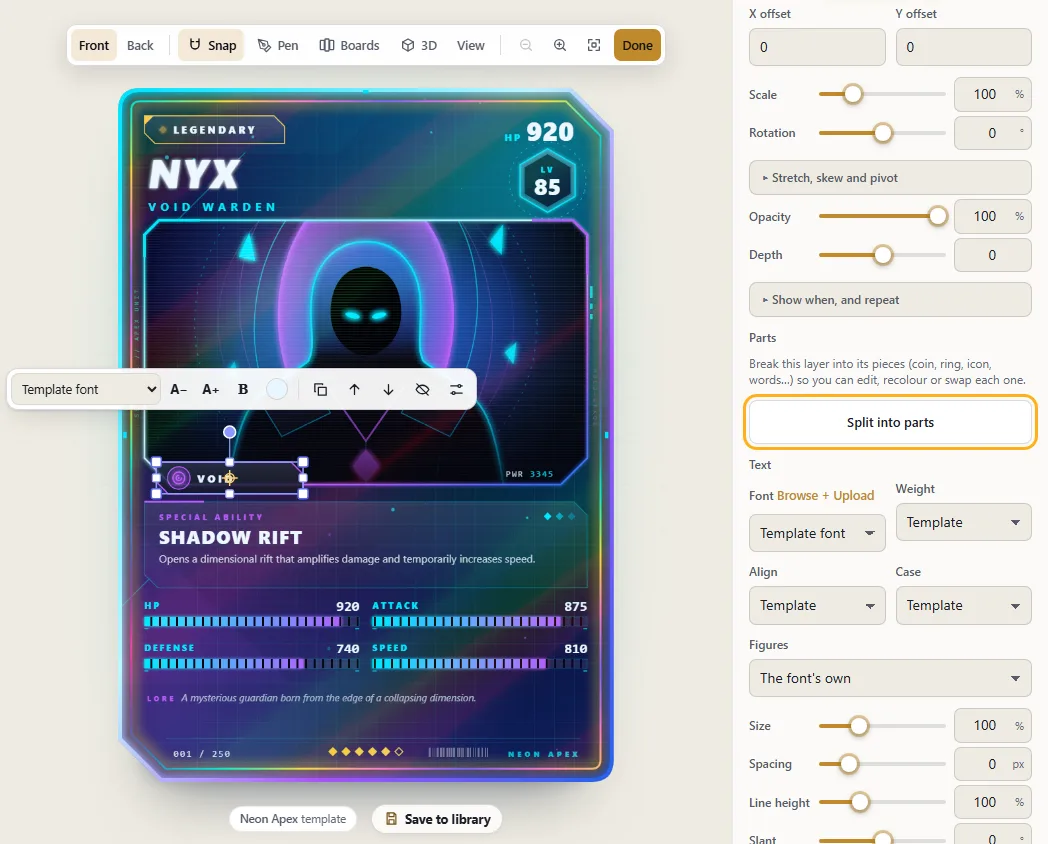
Split a template part into pieces
Pull apart one of a template's badges or plates so each piece can be moved, recoloured or swapped.
Select part of the template, such as the element badge.
Press Split into parts. You'll get a group with the coin, ring, icon and words as separate layers.
Recolour any piece, or give it a picture: a single one, one for each element, or one for each rarity.
To undo the split, use Join parts back.
8
Saving and making whole sets
Your library, turning a spreadsheet into cards, and checking that a set is balanced.
Your card library
Store as many cards as you want, reopen them whenever, and turn a design you like into a template.
Open Library from the top bar.
Save to library stores the card, or updates it if it's already there. Save as copy leaves the original alone and adds a new one.
Click any saved card to open it. If the card you're on has unsaved changes, you can save it first, leave it, or stay.
In Templates, Save design as a template keeps the layout, colours and fields but not the character. You'll find it under My templates when you start your next card.
If you're signed in on the hosted site, your library is there on every device you use.
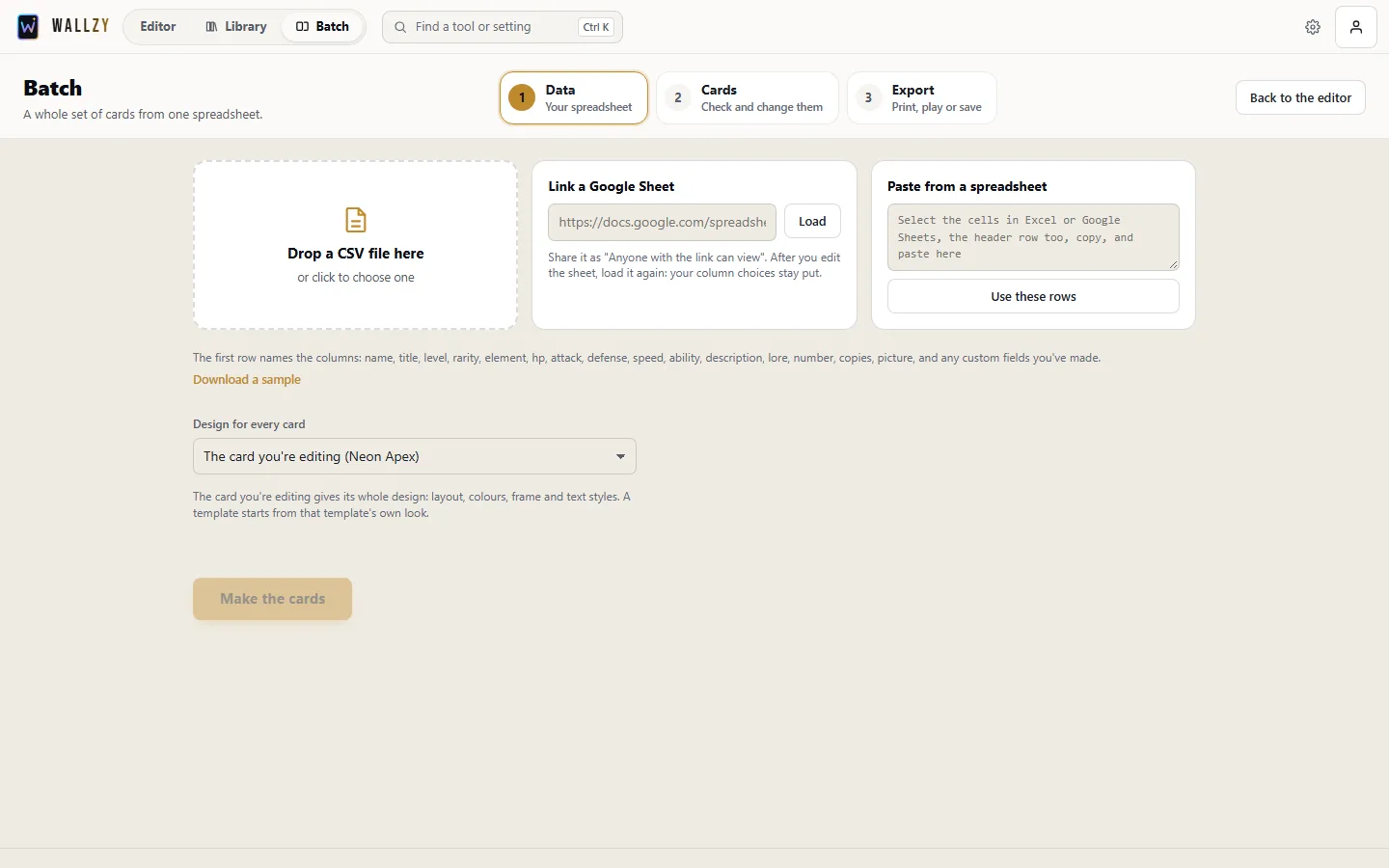
Batch: a whole set from a spreadsheet
Write one row per card in a CSV file, and get back a ZIP of PNGs, print sheets, or cards in your library.
Start by designing a single card exactly how you want the whole set to look.
Set up a spreadsheet with columns such as name, title, rarity, element, hp, attack, ability, picture. Save it as CSV.
Click Batch at the top of the editor. Drop in the CSV (or paste the rows, or link a Google Sheet), plus the pictures if the file refers to any.
Make sure the columns are matched up properly, choose what you want out, and run it.
TipMore export options → Many cards → Variants and print sheets makes the current card in every rarity and element.
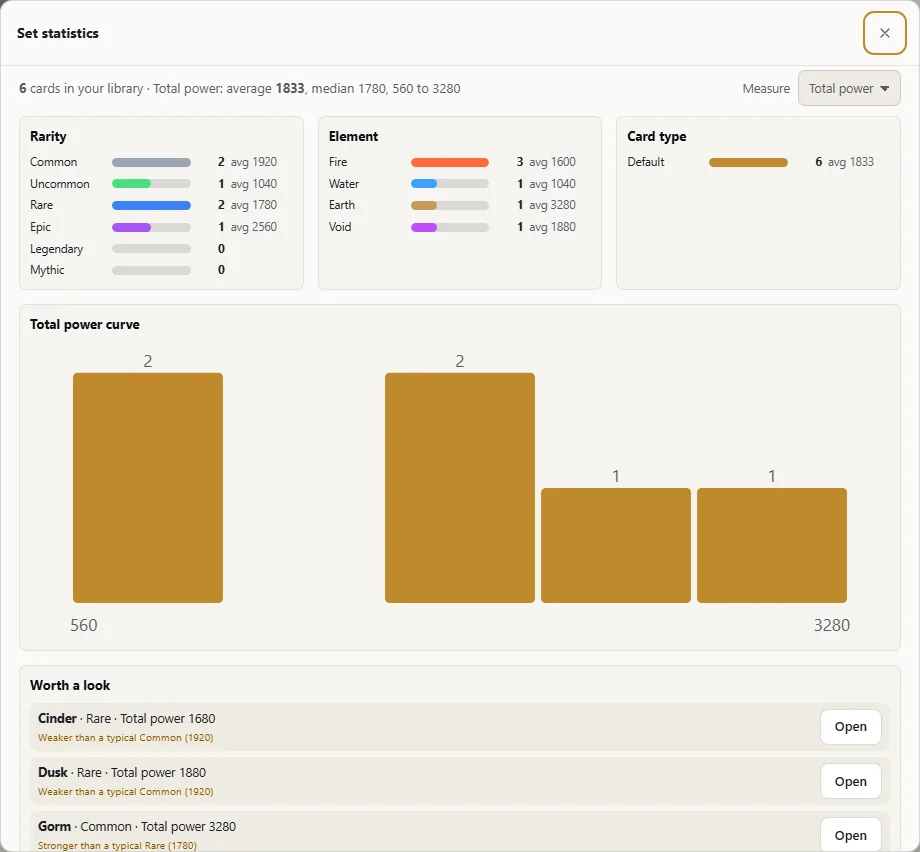
Set statistics
Is your set balanced? Count the rarities and elements, look at the power curve, and spot cards that seem too strong or too weak.
Get there through Library → Statistics or Text → Set and number → Set statistics.
Switch the Measure between total power, level, any one stat, or a number field you made.
Worth a look flags cards that beat a rarer group or fall behind a commoner one. Hit Open to go and fix it.
9
Export and print
Images, PDFs ready to print, files for print shops, layered PSDs and pictures for a store page.
Export a picture or a PDF
PNGs as large as 8K, SVG, and a PDF for printing with bleed and crop marks.
A click on Export downloads a PNG right away.
The arrow next to it has the quick downloads: PNG size (standard, 2K, 4K or 8K), SVG and the print PDF. More export options opens everything else.
Share the card, in the same menu, sends the card as a picture with a link to Wallzy through your phone's share sheet. On a computer it downloads the picture and copies a line with the link, ready to paste.
On Pro and Studio exports carry no mark. Switch on Add a small “Made with Wallzy” mark if you'd like to credit the site. Free exports always have it.
The print PDF comes out at 63 × 88 mm with 3 mm of bleed and crop marks. You can have 300 or 600 DPI, and the back goes on page 2.
Selling the design as a template? Placeholder artwork in exports replaces your art with "your art here" panels.
Print services and CMYK
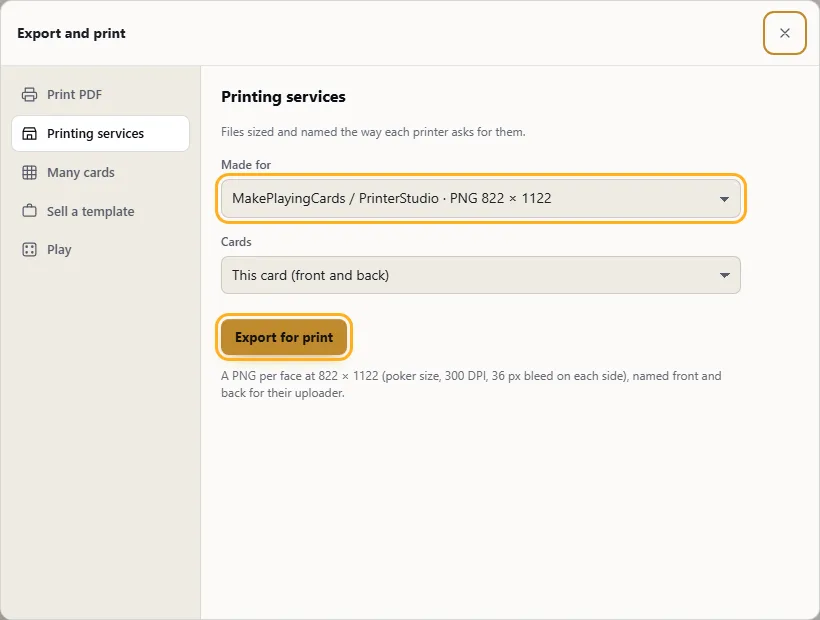
Get files at the right size for MakePlayingCards, The Game Crafter or DriveThruCards, or a CMYK PDF for your local printer.
Open More export options and choose Printing services.
Choose a service, and Wallzy uses the size, bleed and file type that service wants.
Pick This card or Every card in your library and make the files.
Going to a print shop of your own? Under Print PDF in the same dialog, tick CMYK.
For DriveThruCards you get the single CMYK PDF/X-1a file they ask for: ink below 240%, each card's back followed by its front.
Check before printing
Before a print file is made, Wallzy looks for words that could be cut off and pictures too small to print sharply.
Choose Print PDF or a printing service as usual. If something needs a look, the check opens first.
Words within 1.5 mm of the cut are listed. So is any picture under about 240 DPI at the size it's shown on the card.
Show me picks that part and shows the safe area on the card. Fix it, or choose Export anyway.
To run it on its own, open More export options and press Check for printing under Print PDF.
It checks the face you're looking at. Turn it over to check the back too. You can switch the check off in its own window.
Preview the print colours
Your screen can show colours ink can't reproduce, bright blues, greens and neons in particular. Check how they'll print before you order.
Open View from the card toolbar.
Switch on Print proof (CMYK) to see the card as a printing press would put it on paper.
Grey out colours that will change hatches over the spots that will shift the most.
Calm those colours down until you're happy with the proof, then switch it off again.
Treat the proof as a good estimate rather than a promise. If it matters, get a single test card printed first.
Layered PSD for Photoshop
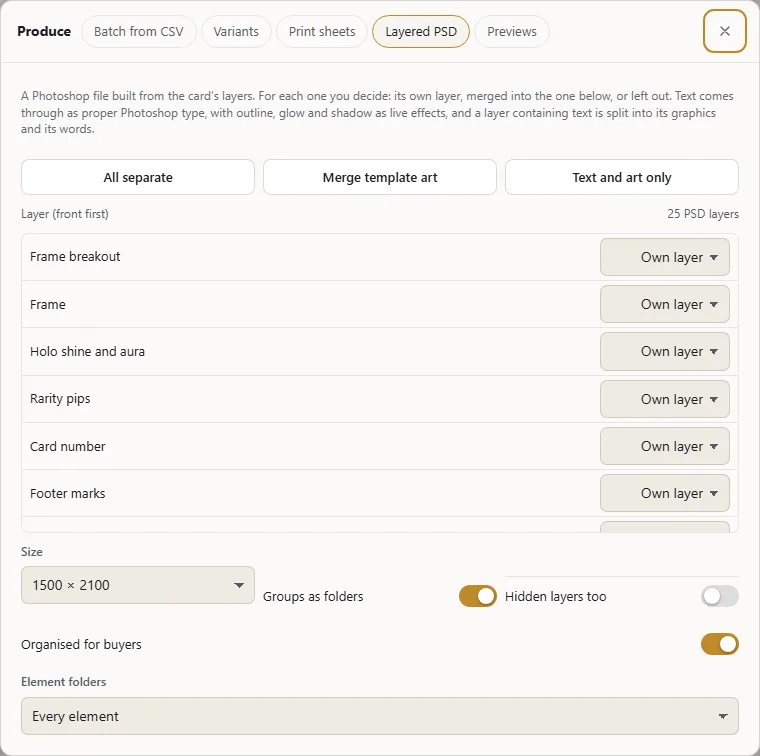
A Photoshop file where the text is still editable, the art sits in a clipping mask, and each element and rarity has its own folder. One PSD can cover a set.
Open More export options, then Sell a template → Layered PSD.
Organised for buyers sorts everything into Text, Artwork, Element, Rarity, Frame and Background, and adds a READ ME layer.
Keep Text as editable Photoshop type ticked for proper type layers. When Photoshop opens the file it'll offer to update them; say Update.
Add a text file of every word on the card bundles all the wording and a list of fonts to install.
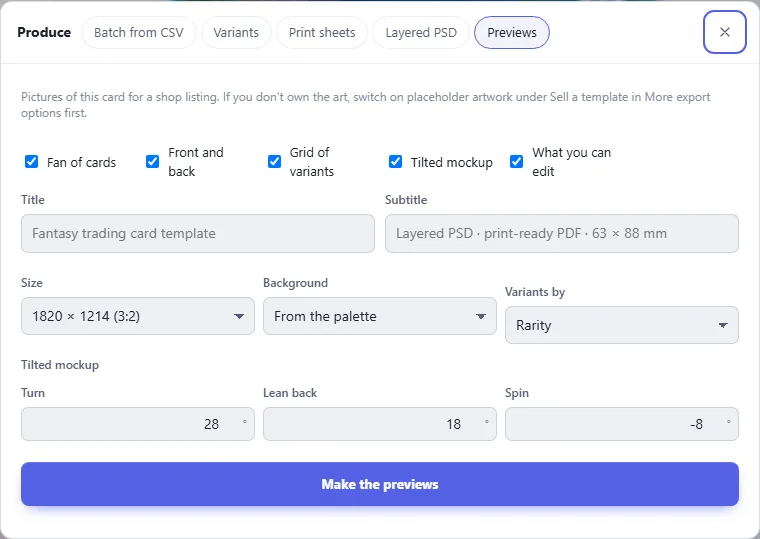
Shop previews
Pictures for a store listing. You can make a fan of variants, front and back side by side, a grid, a tilted 3D mockup, and a "what you can edit" callout.
Open More export options, then Sell a template → Previews.
Pick a size (marketplace, square or widescreen) and tick the previews you want.
Angle the mockup with turn, lean and spin, then make the ZIP.
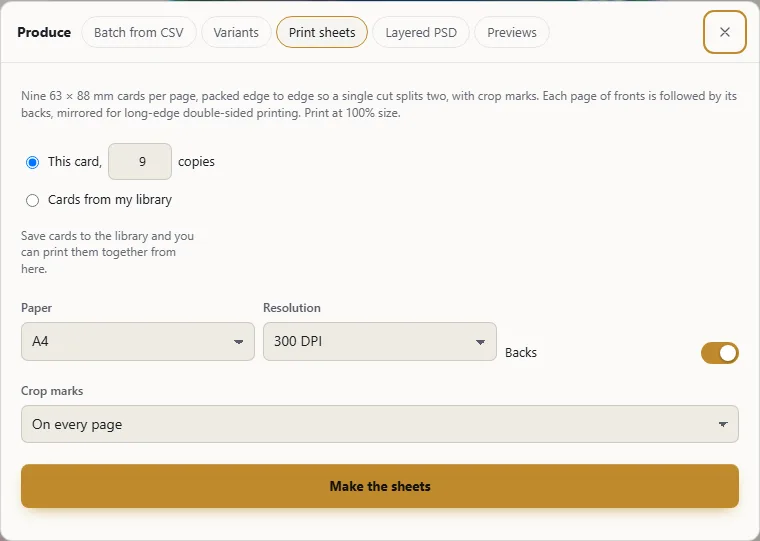
Print sheets
Nine cards on each A4 or Letter page, edge to edge with crop marks. Backs go on the next page so you can print both sides.
Open More export options → Many cards → Variants and print sheets, then the Print sheets tab.
Tick the library cards you want and say how many copies of each.
Pick the paper size, decide about backs, and make the PDF.
Tip Printing both sides? Flip on the long edge. The backs are already mirrored so they line up.
10
Account and plans
These only apply on the hosted site.
Your account
Sign in with Google, or with an email and password. Cards are stored against your account, so they're there on your other devices too.
The person icon at the top right is where you sign in or make an account.
We'll email you a link to confirm your address. Please click it: that's what lets you reset a forgotten password, and it helps keep the account yours.
In that same menu, Account and billing is where your profile picture, password, plan and invoices are. You can download all your data from there as well.
Free, Pro and Studio
If a control has a plan badge on it, that's the plan it needs. Click it to find out what the plan gets you.
Free
Pro
Studio
Templates
seven and the blank canvas
all
all
PNG
standard, with a small mark
up to 8K
up to 8K
SVG, print PDF, print services
no
yes
yes
Library
10 cards
unlimited
unlimited
PSD, batch, variants, sheets, previews
no
no
yes
You can switch plans or cancel from Account and billing whenever you like. After cancelling, you keep the plan until the paid period runs out.
11
Keyboard shortcuts
Mac users: read Ctrl as Cmd.
All the shortcuts
CtrlZ
Undo
CtrlShiftZ or CtrlY
Redo
Arrow keys
Nudge 1 (Shift: 10)
Esc
Deselect
CtrlD
Duplicate
Delete
Delete or hide
CtrlC / X / V
Copy, cut, paste layers
CtrlShiftC / V
Copy, paste text style
][
Forward, back (Ctrl: to front, to back)
CtrlG
Group (Shift: ungroup, or split a template part)
Shift-click
Add to selection
Ctrl-click
One part of a group
Alt while dragging
No snapping
Alt + drag the centre
Move the pivot
P
Pen
Enter / Backspace
Finish a line / remove the last point
Ctrl= / − / 0
Zoom in, out, reset
Shift1 / 2
Whole card / the selection
Space + drag
Pan when zoomed
Ctrl + wheel
Zoom at the pointer
Still not sure? Rest your pointer on any control in the editor for a second and a tooltip explains it. Open the editor