Guide
How to make your own trading cards
In short
To make a trading card, pick a template, write the name, stats and ability, add a picture, choose colours and a back, then export it at 63 × 88 mm. In Wallzy that takes about ten minutes in the browser, with no download, and a free account lets you save the finished card as a PNG.
You can design a trading card in your browser in about ten minutes. Here is the whole process, from a blank idea to a file a printer will take, with the decisions that make a card look finished rather than homemade.
1. Decide what the card is for
A card for a friend's birthday, a card in a game you are designing and a card in a set of fifty all want different things. Settle three questions first:
- Who will hold it? Kids want bold colours and big numbers. Players want rules they can read across a table.
- Is it one card or a set? A set needs a consistent look, card numbers and rarity, so choose a template you are happy to use fifty times.
- Will it be printed? If so, design at the standard size from the start. Our guide to card size and bleed explains why.
2. Pick a template
A template gives you the frame, the layout and the typography, all on separate layers you can change. Wallzy has 20 original templates, from the glass and light of Neon Apex to the hand-drawn Tavern Tale, a sports card in Stadium Star and a tarot card in Arcana Tarot. Browse them all on the templates page.
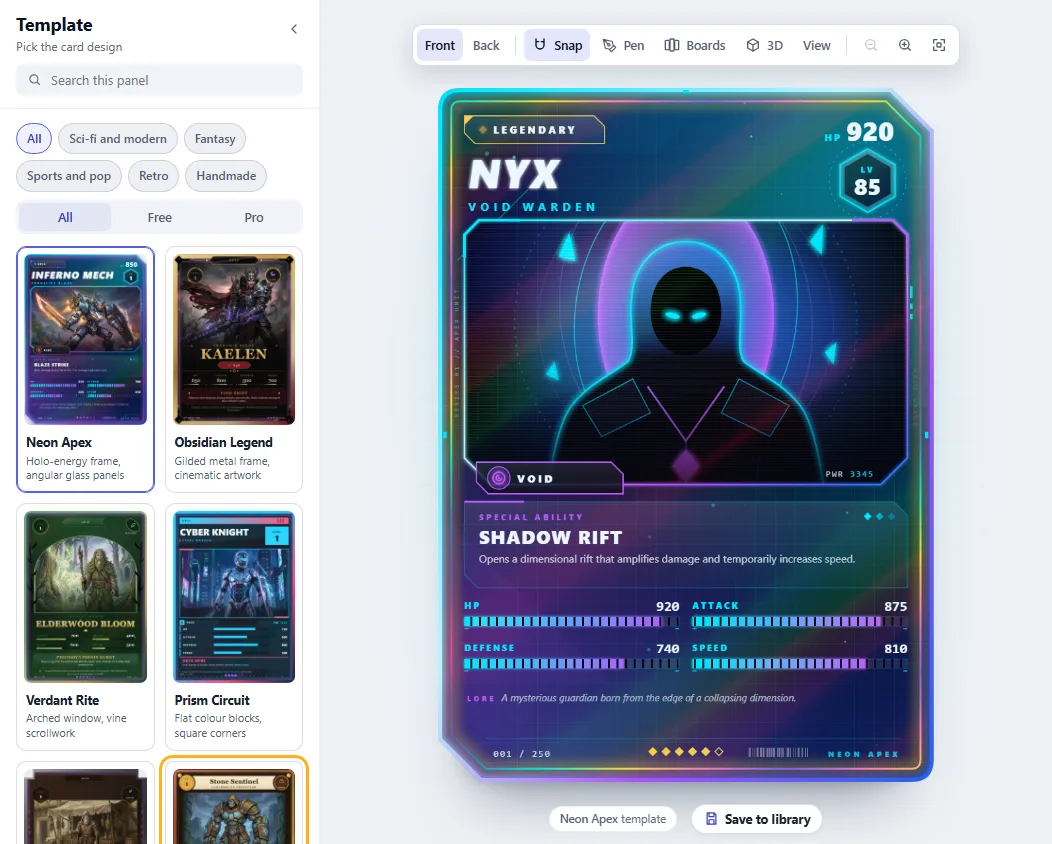
If none fits, start from the blank canvas and build the frame yourself from shapes, borders and frame parts.
3. Write the card
Every template reads the same card data, so you can switch templates later and keep everything you wrote. Fill in:
- Name and title. Keep the name short. Long names are shrunk to fit, which makes them harder to read.
- Level, rarity and element. Rarity changes the holo strength and the aura, and the element sets the badge colour.
- Stats. Four by default (HP, attack, defense, speed). Add stats of your own, such as mana or luck, and they are counted in the total power.
- The ability and its effect, and a line of lore. Lore is optional but it is what makes a card feel like it belongs to a world.

Stuck for words? The AI writer fills in a whole card from one line of description, and one undo puts everything back if you do not like it.
4. Add the art
The picture does most of the work. Three ways to get one:
- Upload your own. A drawing, a photo, a render. PNG, JPG or WebP.
- Search free art from inside the editor, filtered to pictures you are allowed to use in cards you sell, and the credit is kept for you.
- Generate one from a description with the AI picture generator. It asks for the shape of the art window, so heads do not get cropped off.
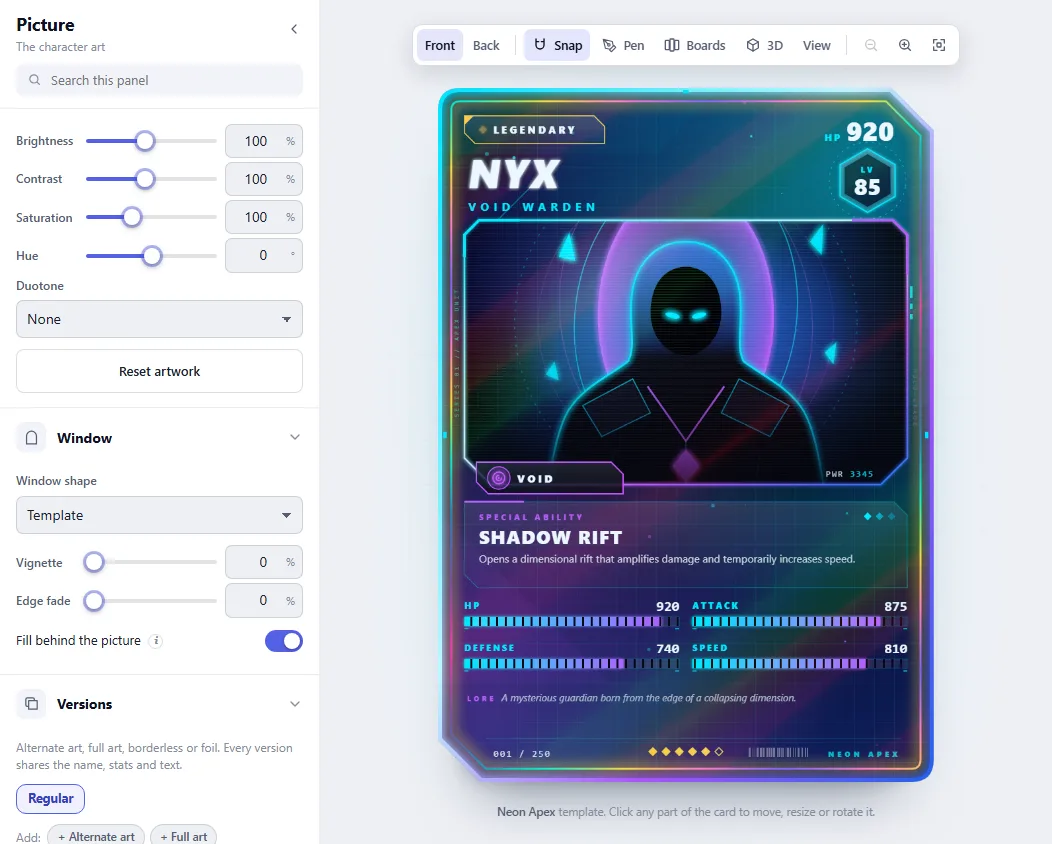
Drag to move it, use the slider to scale it, and if the picture has a plain background, remove it so the character can break out of the frame.
5. Style it
A Look changes the palette, frame, background and lettering in one click, and one undo takes it back. Then adjust the seven colours, the frame metal, the corners and the holo sheen. Keep to the template's spirit: one strong accent colour reads better than four.

6. Design the back
A printed card has two sides. Every template has a matching back, or you can pick another design and add your set name, a tagline and your own logo. The back follows the front's colours and shape unless you unlink them.
7. Export it
Make a free account to download. On the Free plan you get a PNG at 1500 × 2100 pixels, which is 600 DPI at the standard card size, with a small Wallzy mark. Pro removes the mark and adds bigger PNGs, an SVG and a print PDF with bleed and crop marks. If you are printing at home, read how to print trading cards at home next.
Tips that make a card look finished
- Proofread. A typo on a printed card is there forever.
- Keep important text away from the edges. Cutting is never perfect.
- Use the same template, rarity colours and icons across a set.
- Print one test card on plain paper before a whole sheet on card stock.
More on that in our card design tips.
Questions people ask
Can I make my own trading cards for free?
Yes. Wallzy is free to start with no account: seven templates, a blank canvas and every editing tool. A free account lets you download a 1500 × 2100 PNG with a small mark. Paid plans add more templates, bigger files and print PDFs.
What size should a trading card be?
The standard size is 63 × 88 mm, or 2.5 × 3.5 inches. Sleeves, binders and card printers all expect it. Design at that size from the start, with 3 mm of bleed if a printer will cut it.
Do I need to be able to draw?
No. Upload a photo, search free pictures from inside the editor, or describe the picture and let the AI generator make one. The template supplies the frame, layout and lettering.
How do I make a whole set that looks the same?
Use one template for every card, keep rarity colours and icons the same, and number the cards (001/100). With Studio, Batch makes every card in a set from one spreadsheet.